Screen(HTS)
Quote
1101
[1101] Stock Price
This feature makes it easy for you to see the complete details of a stock.
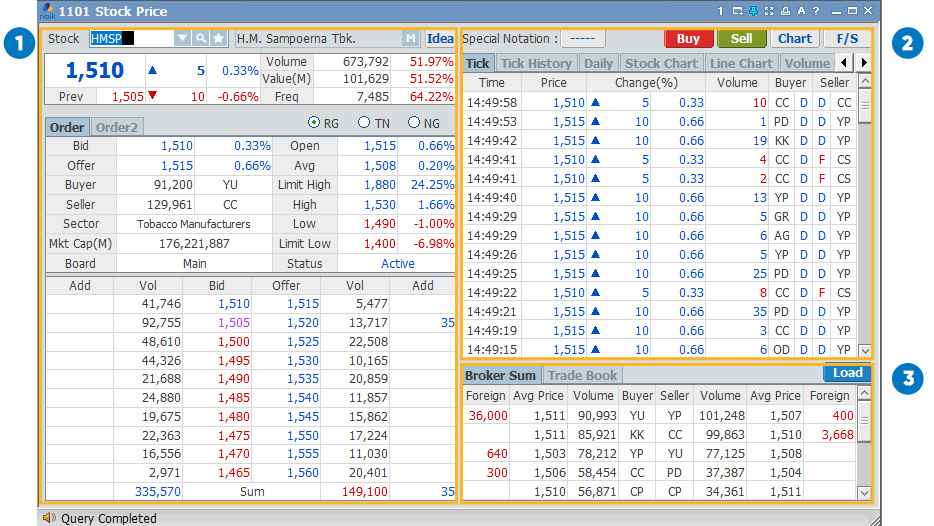
In this section you can find out the details of the price of a share in detail and the latest. The information you can get is in the form of Bid / Offer prices, trading volume, trading frequency, and others.
If you select the menu tab Order2, it will display a different version of Bid / Offer. 10 share prices will be displayed with the transaction volume and the percentage increase / decrease.
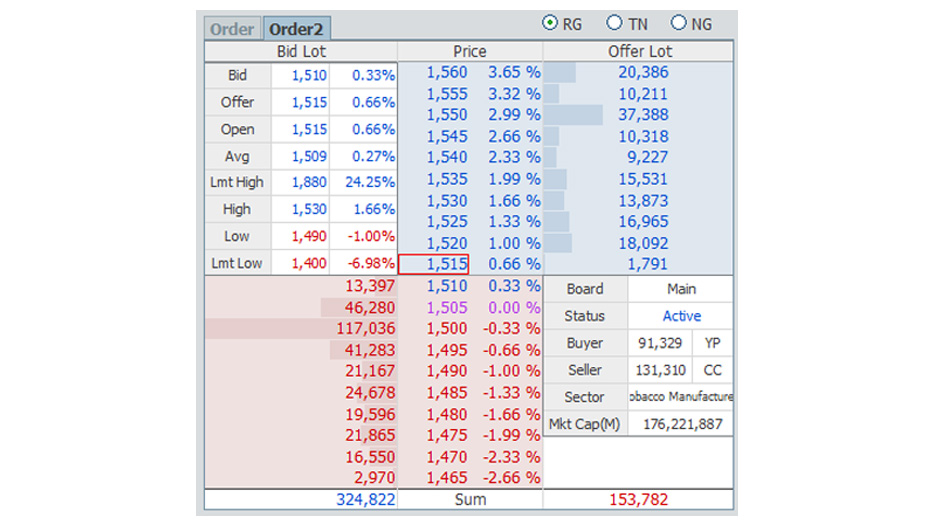
If you select the menu tab Order2, it will display a different version of Bid / Offer. 10 share prices will be displayed with the transaction volume and the percentage increase / decrease.
You can check detailed information on stocks of your own choice such as ticks, history ticks, daily, stock charts, line charts, volume charts, and other menus that you can choose by sliding the menu.
There are also Special Notation, Buy, Sell, Chart, and F / S buttons. Special notation contains symbols for companies that are not in good condition. The Buy button is when you want to buy the stock, while the Sell button is when you want to sell the stock. The Chart button displays a chart of stock movements according to the time range you choose. And the F / S button is the company's financial statement.
There are also Special Notation, Buy, Sell, Chart, and F / S buttons. Special notation contains symbols for companies that are not in good condition. The Buy button is when you want to buy the stock, while the Sell button is when you want to sell the stock. The Chart button displays a chart of stock movements according to the time range you choose. And the F / S button is the company's financial statement.
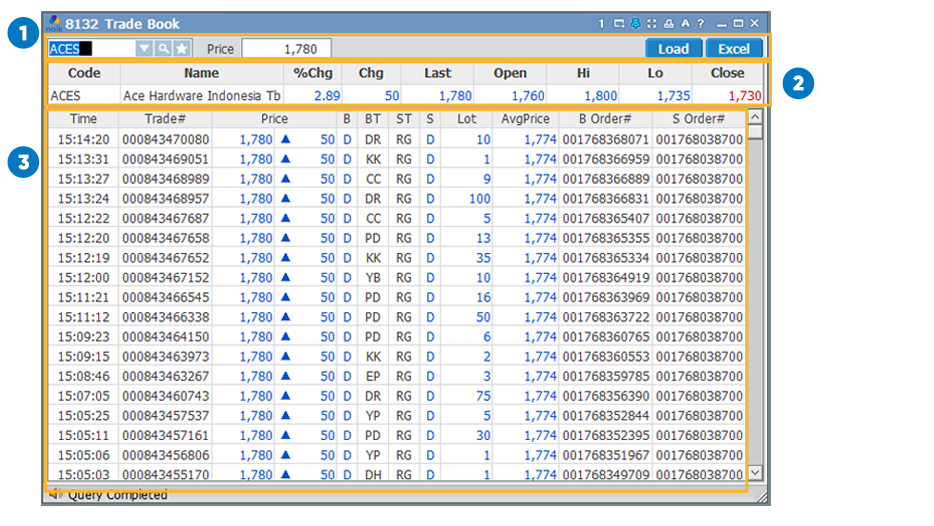
In this section you can find out the details of Broker Sum and Trade Book.
1104
[1104] Stock Daily
On this screen you can view stock details based on a certain time period.
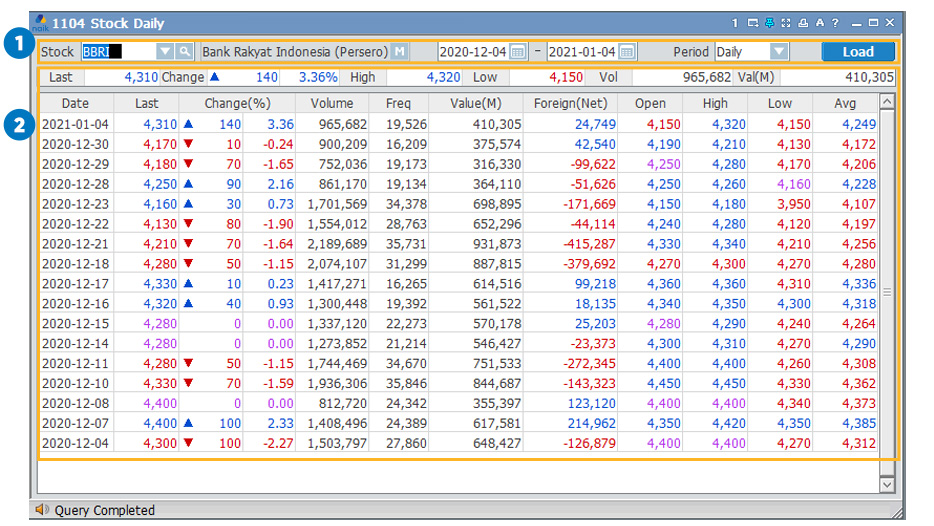
Select stocks in the search field and select the icon  to select the time period you want then click the Load button. The current share price, increase and decrease percentage, High and Low price, and trading volume are displayed.
to select the time period you want then click the Load button. The current share price, increase and decrease percentage, High and Low price, and trading volume are displayed.Share prices, percentage increase and decrease, High and Low prices, trading volume, trading frequency, trading value, average value (Avg), and opening price will be displayed according to the desired date.
1151
[1151] Mini Stock Price
This screen displays a brief breakdown of the current share price.
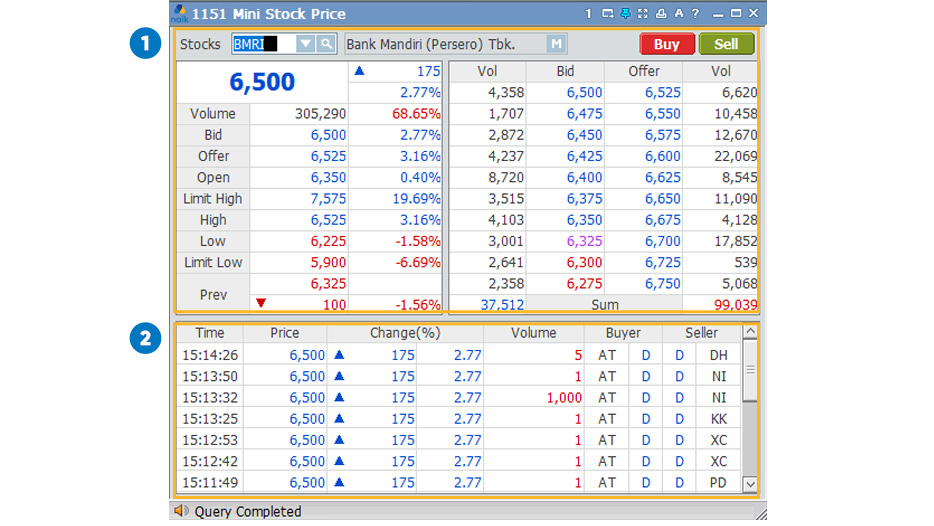
Select the stock you want, then you can press the Buy button to buy the stock and Sell to sell the stock. This section displays a brief breakdown of the bid / offer prices along with the transaction volume.
The following details contain the share price and transaction volume according to exchange hours, along with the brokers of various securities.
1102
[1102] Multi Stock Price
Monitor multiple ticker codes on one screen.
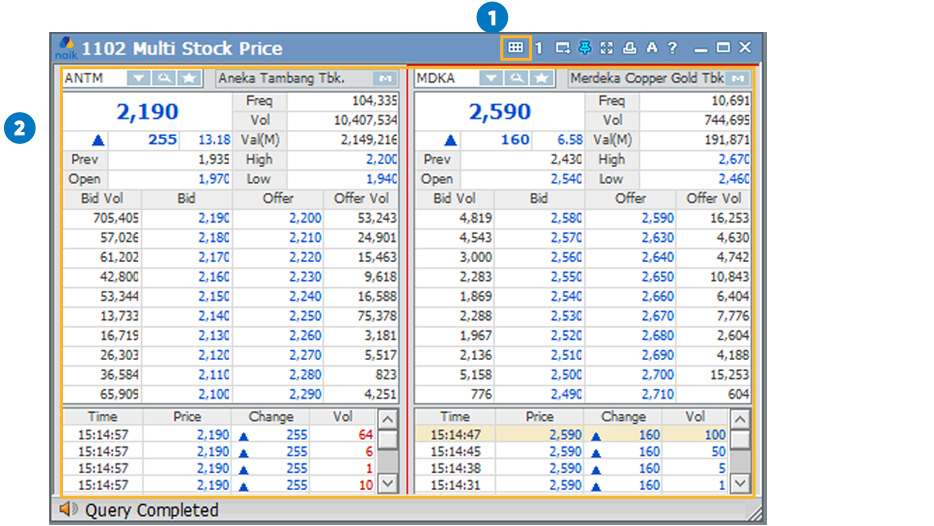
Select the grid according to the number of stocks you want to monitor.
Stock price according to the grid you choose.
1105
[1105] Preopen Stock Inquiry
This feature is useful for knowing the opening price of shares included in the LQ45 index before trading hours session I.
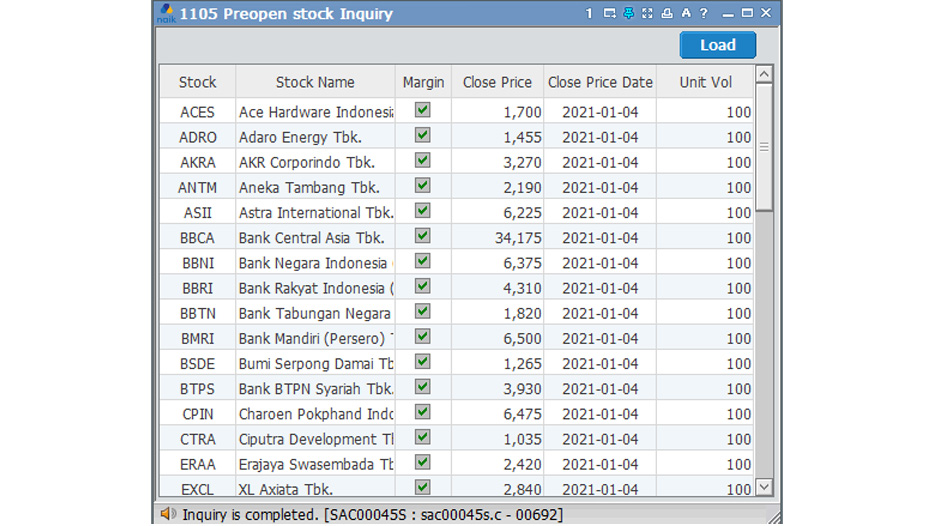
The Margin column indicates that these shares can be purchased by a margin account. Close Price is the closing price of the previous day, along with the date on the Close Price Date. Vol units show the volume per lot.
1601
[1601] Watchlist
If you want to keep an eye on certain stocks, this feature is for you.
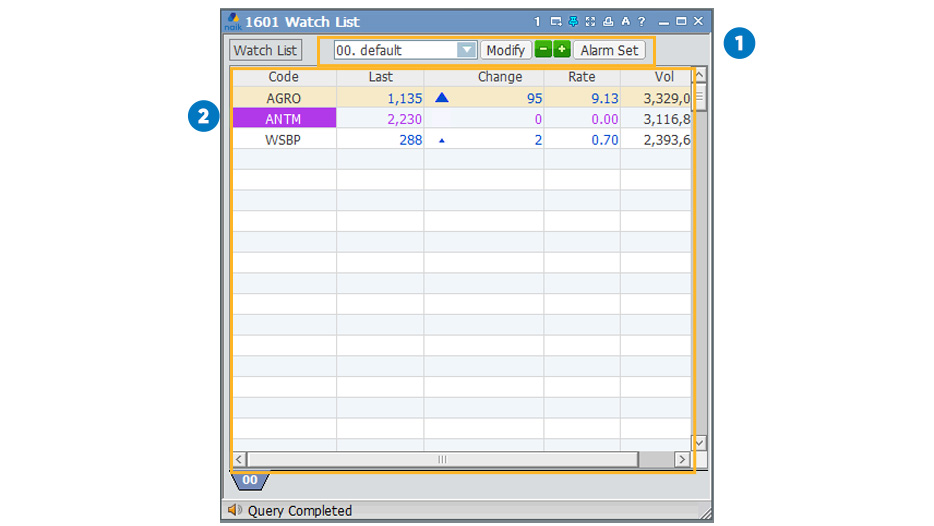
Here are the functions of the buttons:
 : Group name from your watchlist
 : Organize your watchlist
 : Reduce or add screens (if you have more than one watchlist group)
 : To bring up the Alarm setting
These columns provide brief details about your selected stocks.
1605
[1605] Set Watchlist
Your watchlist settings.
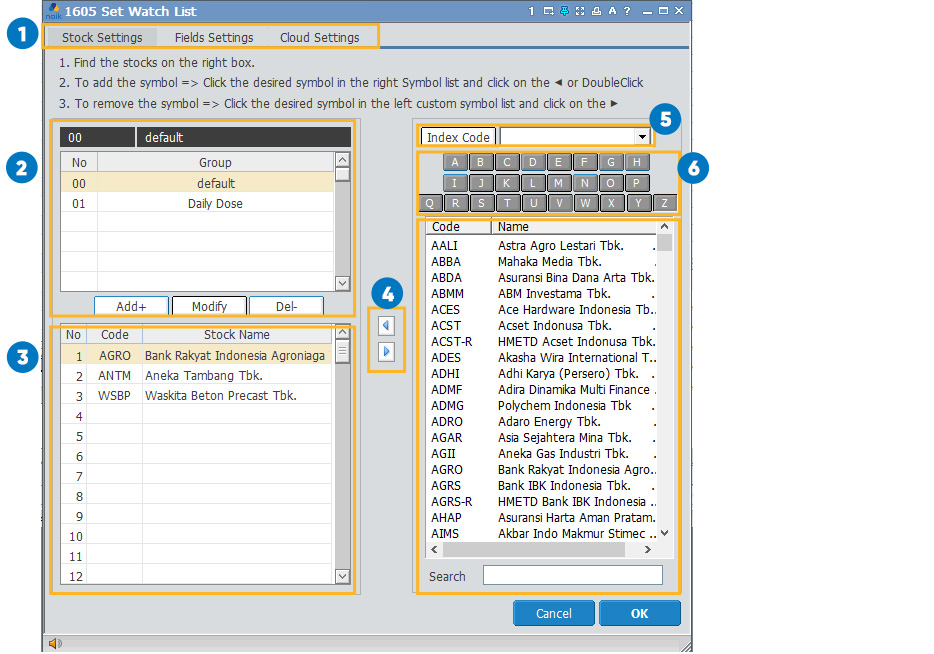
Stock Settings to set your preferred stock and watchlist group. Field Settings to set the parameters you want to monitor. And Cloud Settings to manage your watchlist storage.
Contains the watchlist groups that you have saved. Here are the functions of the buttons:
 : Add a watchlist group
 : Rename your watchlist group
 : Delete your watchlist group
The stocks you have selected to be included in your watchlist group.
Here are the functions of the buttons:
 : Add shares to the group
 : Remove shares from the group
Search for stock codes by sector or index.
Sort stock codes by first letter.
List of stock codes. You can also search for stock codes in the search field.
1521
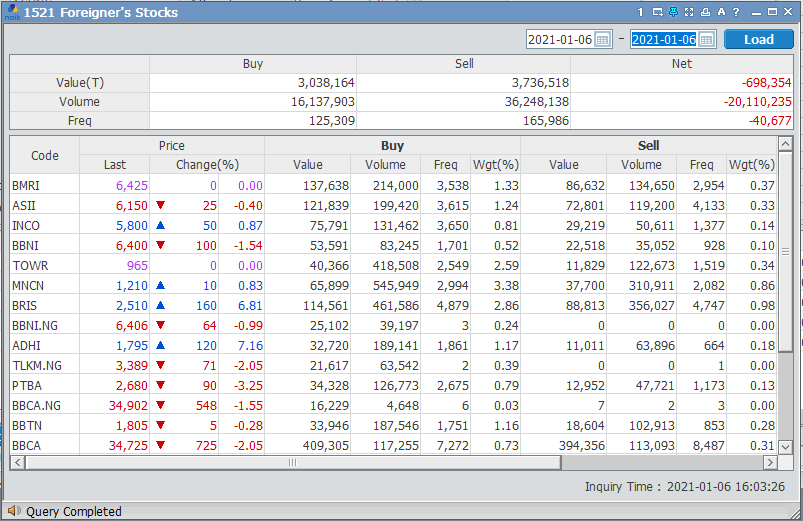
[1521] Foreigner's Stocks
View trade transactions by foreigners according to the selected time frame.
1522
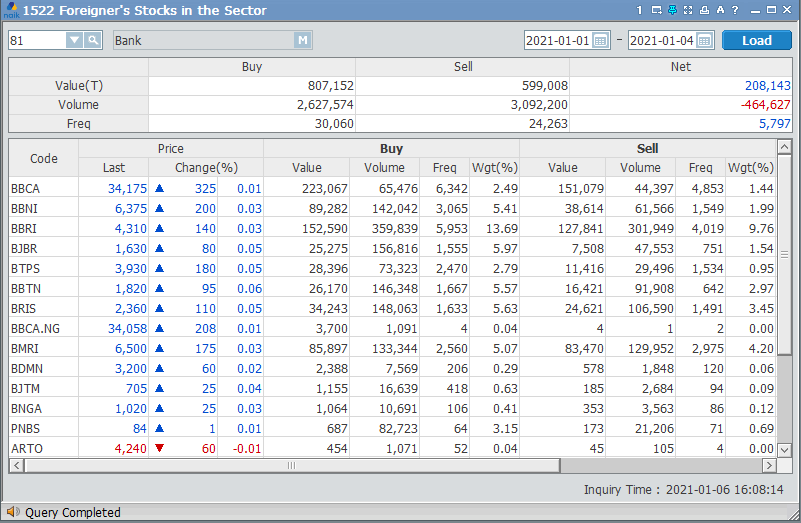
[1522] Foreigner's Stocks in the Sector
View trade transactions by foreigners by sector according to the selected time frame.
2101
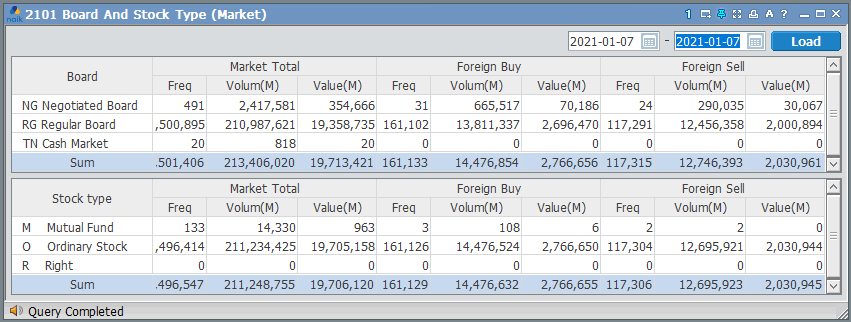
[2101] Board And Stock Type (Market)
Shows details of trade transactions based on the secondary market (regular market, cash market, and negotiable market). These details are the accumulation of domestic and foreign trade transactions.
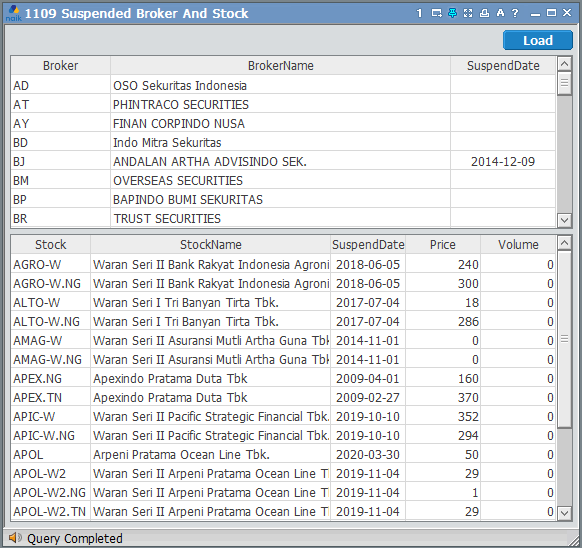
Index
1109
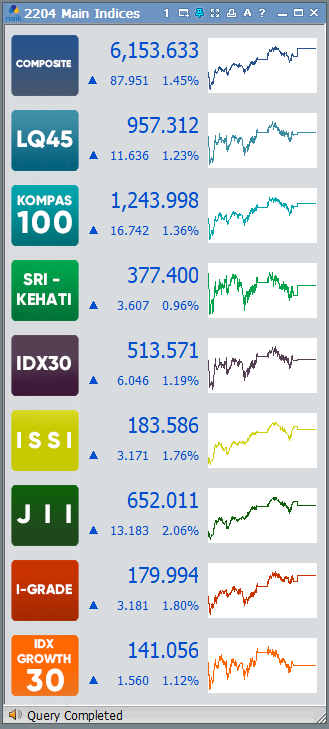
[2204] Main Indices
Displays the index along with the latest data on average stock prices, increase / decrease values and graphs.
2201
[2201] Index Detail
Complete details of all indexes listed on the Indonesia Stock Exchange (IDX).
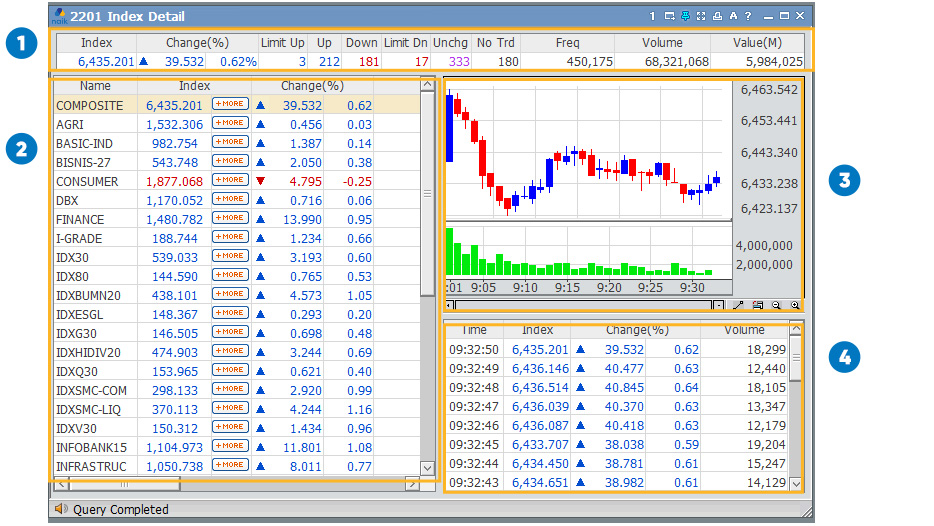
Brief details of an index live.
A collection of indexes listed on the IDX along with some available data.
Live chart movement of an index.
Percentage change and volume of an index per second.
2200
[2200] Index Composite
By selecting the Index or sector to be searched for, you can search for the stock price of items consisting of index, daily price, charts and each sector on this screen.
Menu Index : Real-time market prices according to a specific index
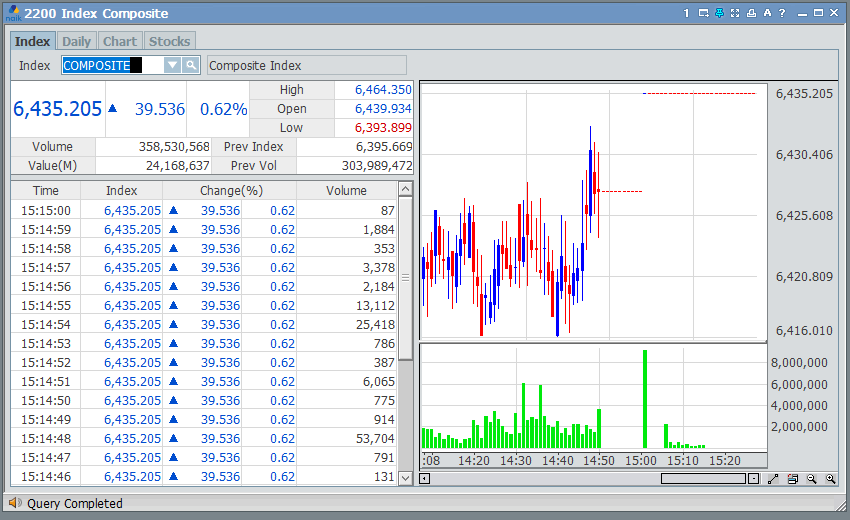
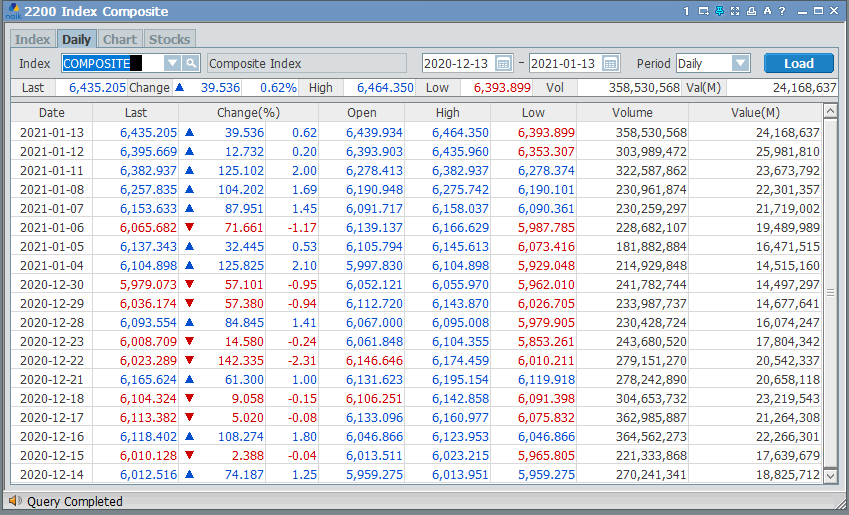
Menu Daily : The daily price index that you have selected
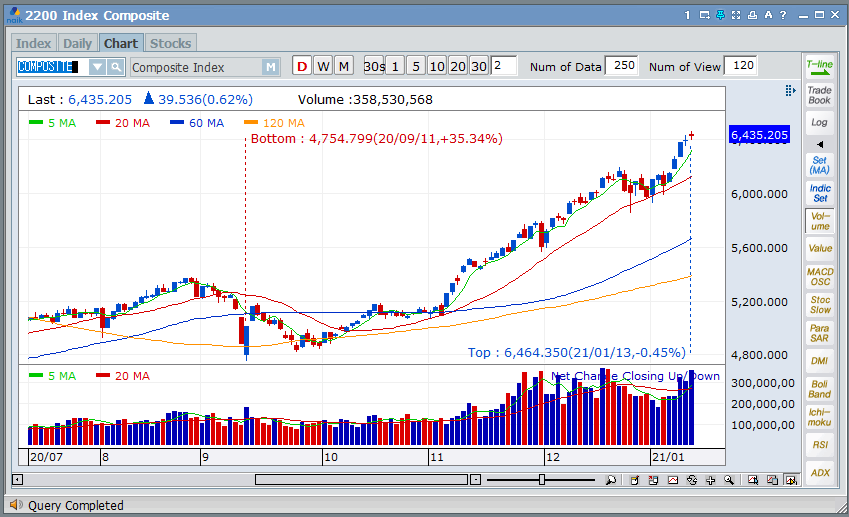
Menu Chart : Movement chart / index chart that you have chosen
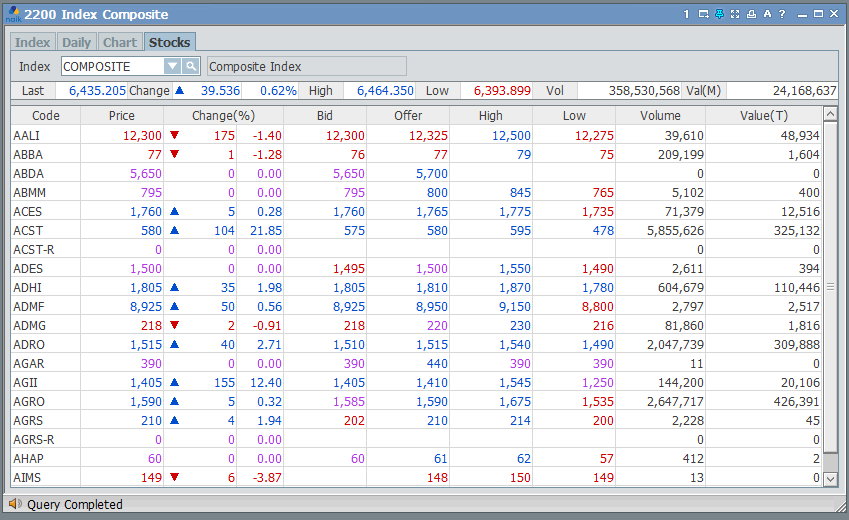
Menu Stocks : The description of the shares included in an index, along with the information available
2202
[2202] Index Mover
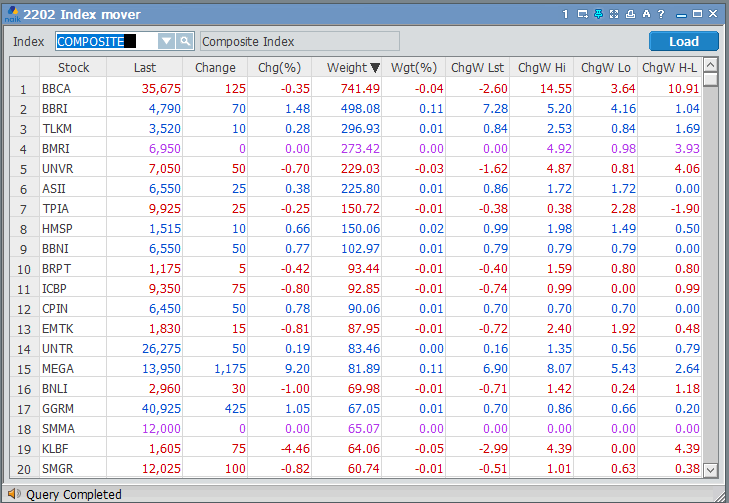
This feature explains in detail the stock codes included in a particular index.
2203
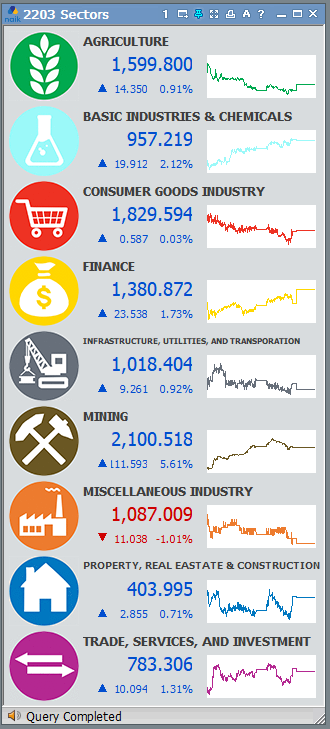
[2203] Sectors
Displays the details of buying and selling transactions for sectors and sub-sectors based on a certain time period.
1520
[1520] Sector List
Displays the details of buying and selling transactions for sectors and sub-sectors based on a certain time period.
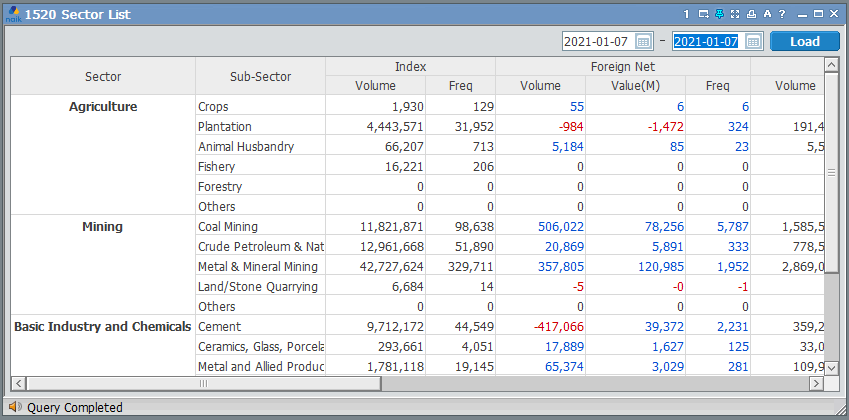
Select the timeframe you want, then select Load.
2700
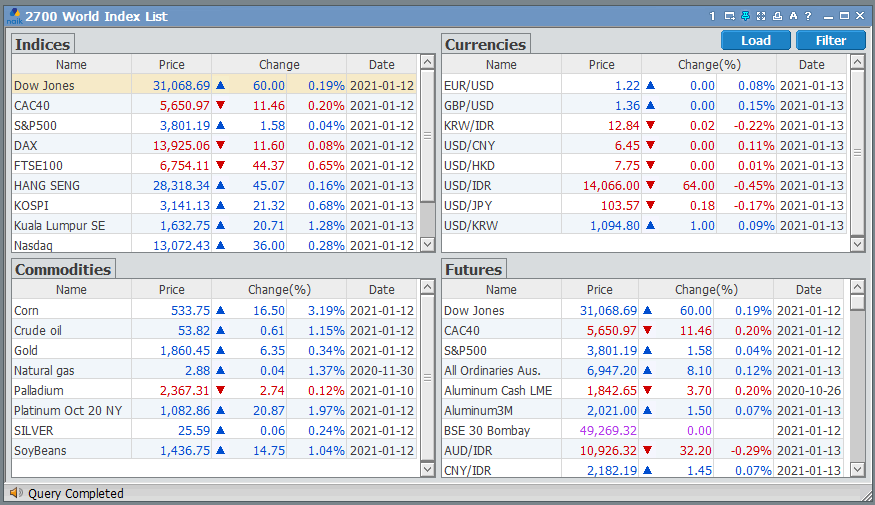
[2700] World Index List
This screen displays information in the form of foreign indices, currency, commodities, and futures.
2701
[2701] World Indices
On this screen you can find more complete information about indexes that exist abroad.
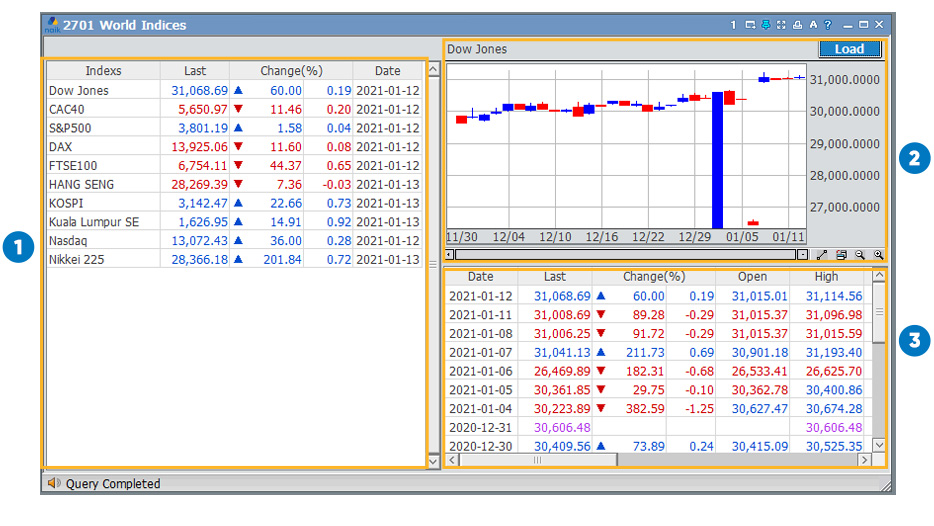
List of foreign indices
The movement of the index chart that you choose
Index increase or decrease information
2702
[2702] Currencies
On this screen you can find more complete information about foreign currencies.
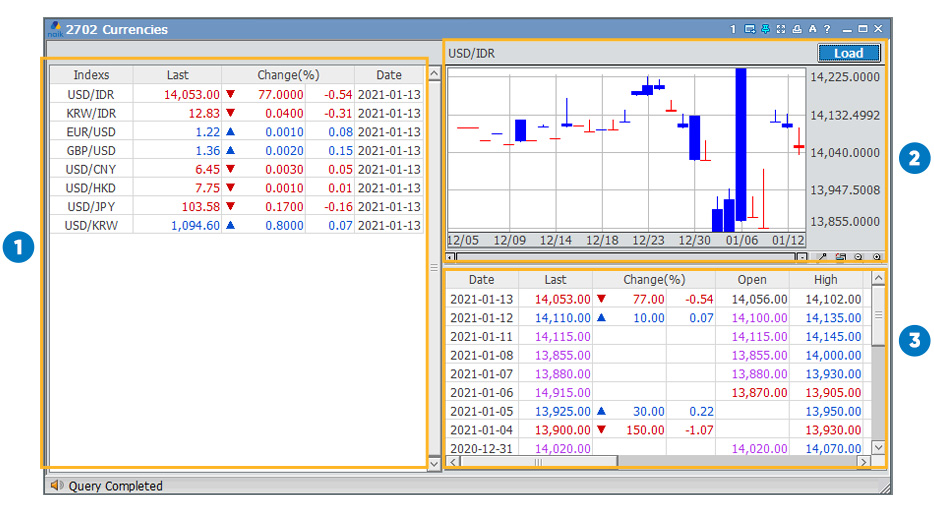
List of foreign currencies against other foreign currencies
Chart movements of foreign currencies against other foreign currencies
Information on the increase or decrease in foreign currency
2703
[2703] Commodities
On this screen you can find more complete information about commodities.
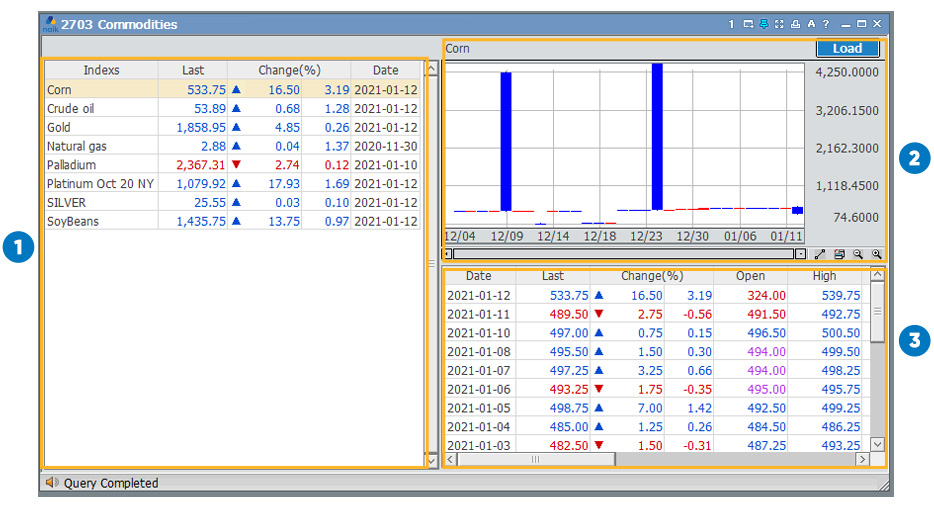
Commodity list
The movement of the chart of a commodity that you choose
Information on the increase or decrease in a commodity
2704
[2704] Futures
On this screen you can find more complete information about the futures exchange.
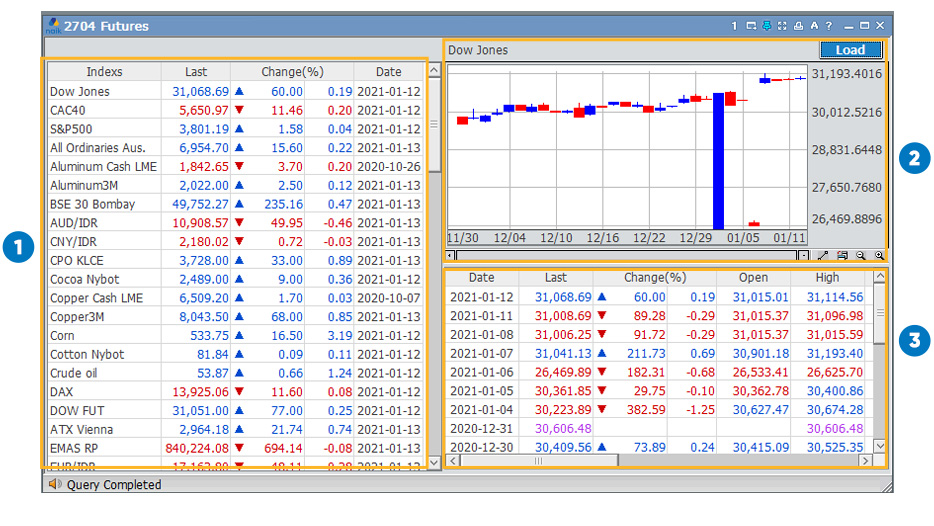
List of foreign futures exchanges
Futures exchange chart movement that you have chosen
Information on the increase or decrease in a futures exchange
2705
[2705] World Index Daily
You can view complete information about foreign indices, foreign currencies, and commodities.
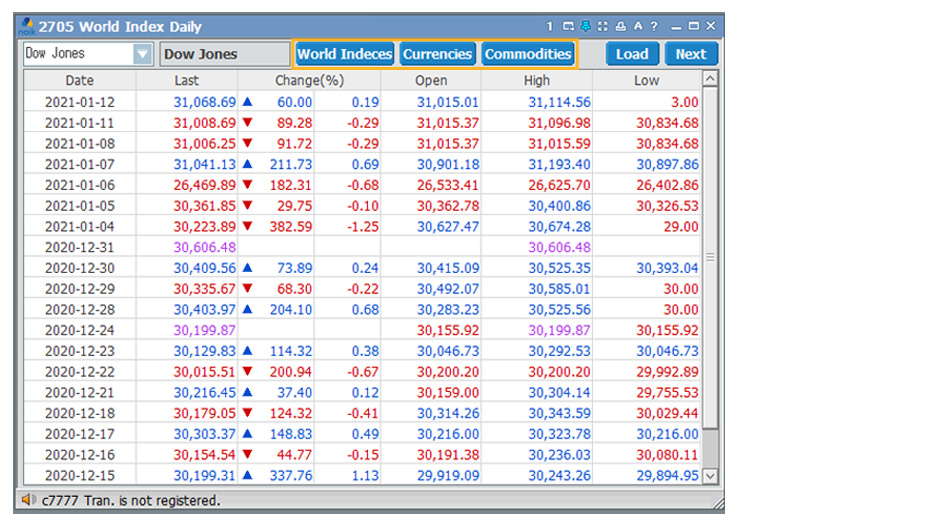
The button  will take you to screen 2701 (explained in point h). The button
  will take you to screen 2702 (explained in point i). The button
  will take you to screen 2703 (explained in point j).
will take you to screen 2701 (explained in point h). The button will take you to screen 2702 (explained in point i). The button will take you to screen 2703 (explained in point j).Order
8100
[8100] Order
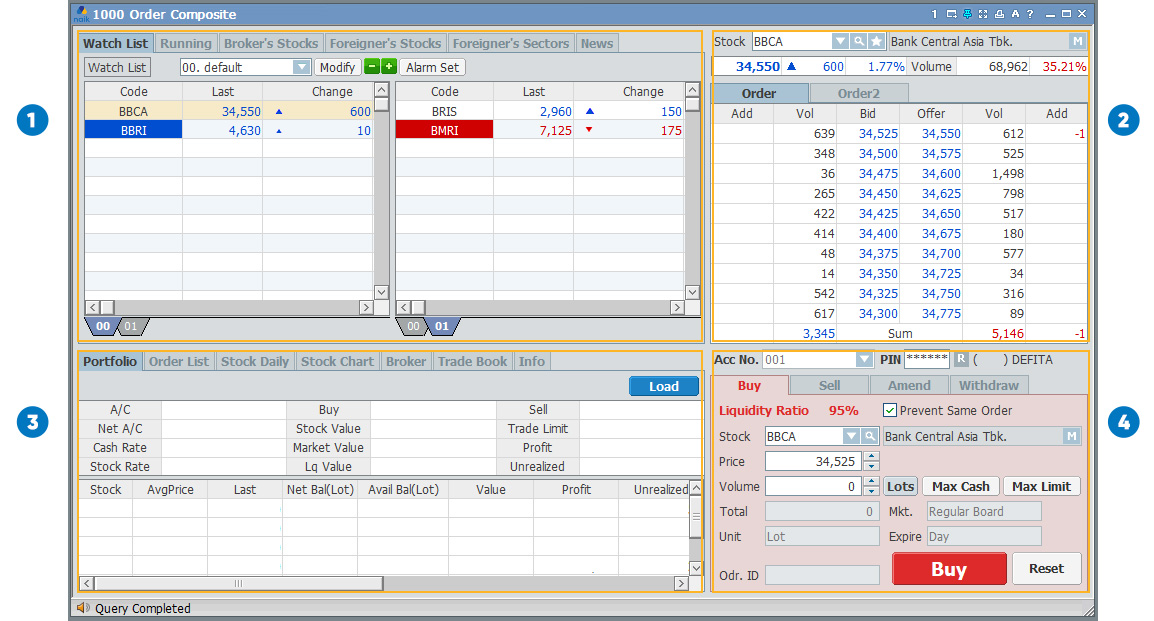
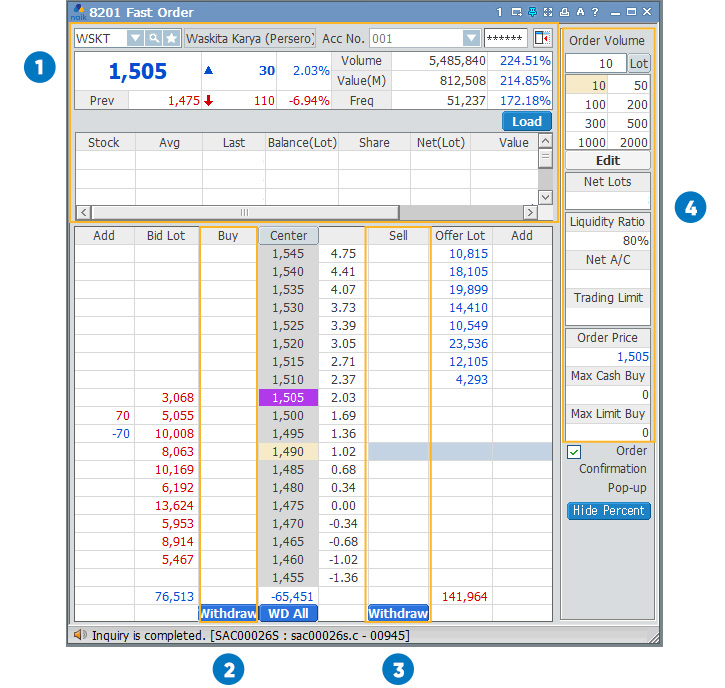
You can monitor the stock price along with the buy / sell order of a stock.
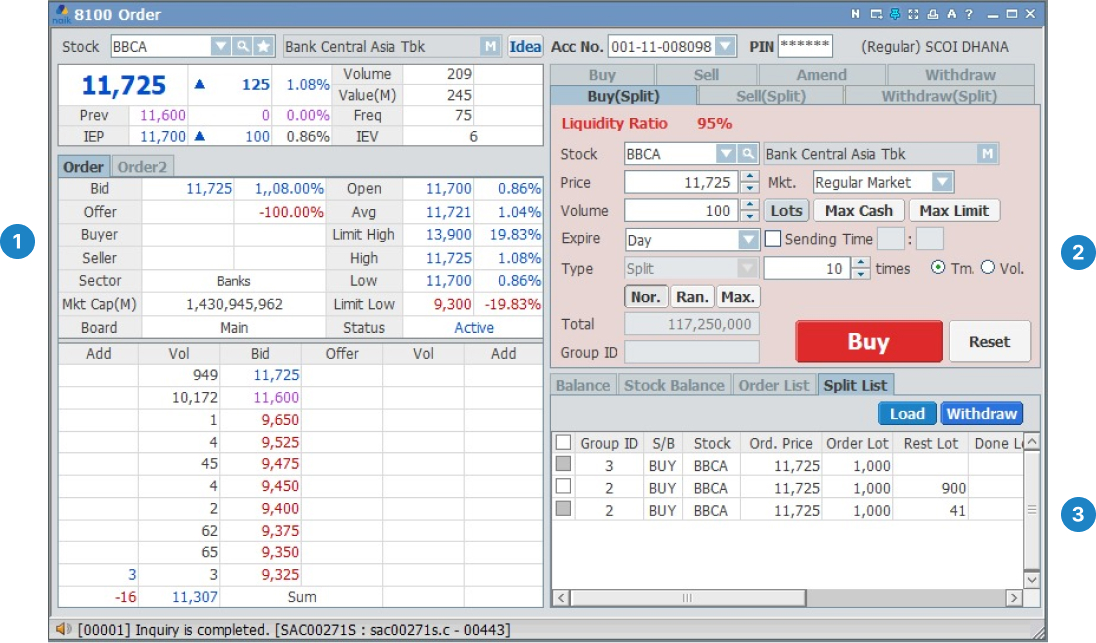
Latest share price in detail
Buy / sell / amend / withdraw / Buy (Split) / Sell(Split) / Withdraw (Split) orders
The information of balance, stock balance, order list, and split list
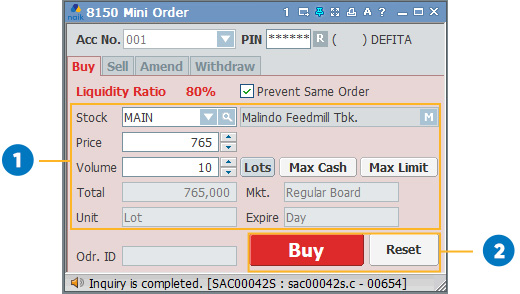
BUY ORDER 
- Stock: Stock Name
- Price: Price of stock
- Mkt. (Market): Regular Market and Cash Market
- Volume: How many lots you buy
- Max Cash: Maximum cash you have
- Max Limit: Maximum limit you have
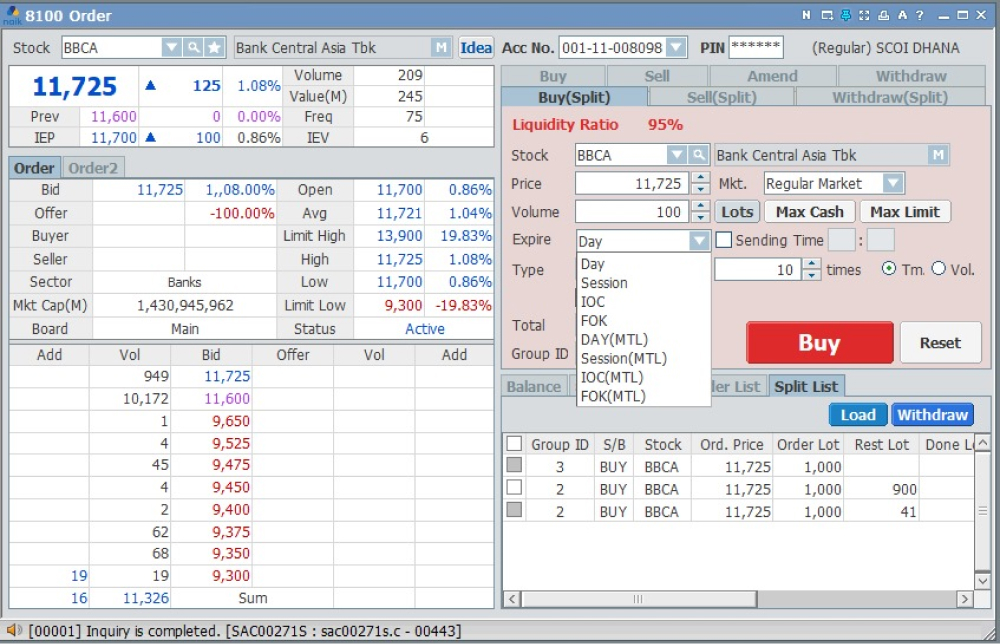
- Expire: Order time which has expiration period of time
- Day: a general ordering method in which an investor specifies a quantity and price and places an order.
- Session: a general ordering method in which an investor specifies a quantity and price and places an order during one session. After one session, the remain session order is canceled.
- IOC (Immediate or Cancel): an order with the condition that the quantity with the price that can be executed is traded and the quantity that has not been traded is canceled when placing the order.
- FOK (Fill or Kill): an order with the condition that when placing an order, the entire quantity with until the price can be traded only, and if it is not possible to do so, the entire order quantity is canceled.
- Day (MTL): Investors designate only the stock and quantity they want, and place a trading order at the current or to-be-formed price without directly designating the price. Choose this order if you want to be sure that it is executed right now in the fastest time possible. Market orders continue to buy or sell until the quantity is filled.
- Session (MTL): Investors designate only the stock and quantity they want, and place a trading order at the current or to-be-formed price without directly designating the price. Choose this order if you want to be sure that it is executed right now in the fastest time possible during one session. Market orders continue to buy or sell until the quantity is filled.
- IOC (MTL): an order with the condition that when placing an order, the quantity that can be executed is traded and the quantity that has not been traded is canceled.
- FOK (MTL): an order with the condition that when placing an order, the entire quantity can be traded only, and if it is not possible to do so, the entire order quantity is canceled.
- GTC (Good till Cancelled): an order that is working regardless of the time frame, until the order is explicitly cancelled.
- GTD (Good till Date): order is valid till a specified date or time unless it has been already fulfilled or cancelled.
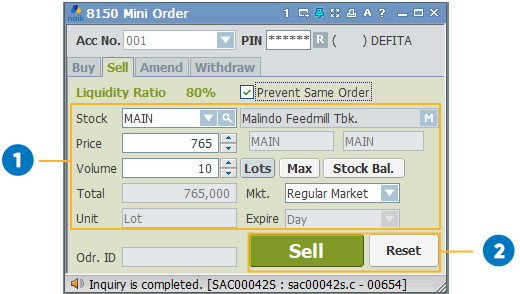
- Type: General, Split, Multiple.

- Stock: Stock Name
- Price: Price of stock
- Mkt. (Market): (Same as above)
- Volume: How many lots you sell
- Max: Maximum stock you have
- Expire: (Same as above)
- Type: (Same as above)

- Stock: Stock Name
- Price: Price of stock
- Volume: How many lots you want to amend
- Prev.ID: Order ID that you want to amend

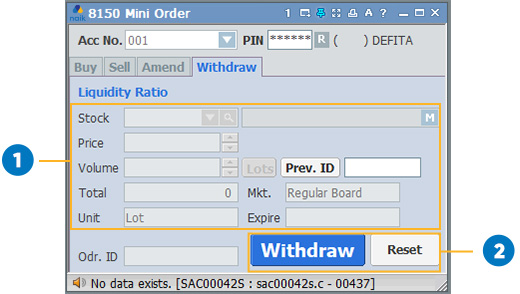
- Stock: Stock Name
- Price: Price of stock
- Volume: How many lots you want to withdraw
- Prev.ID: Order ID that you want to withdraw
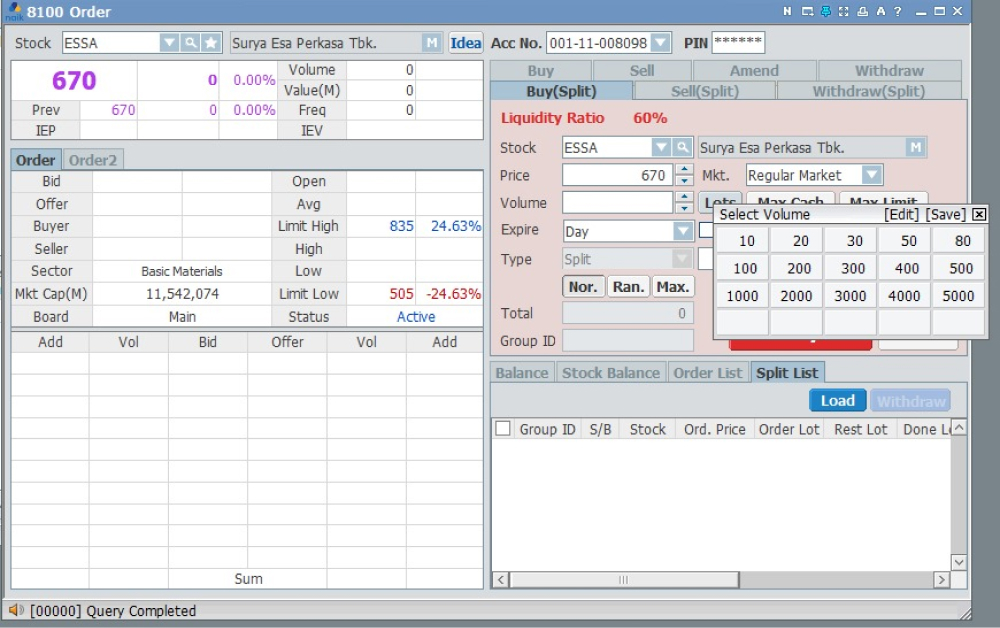
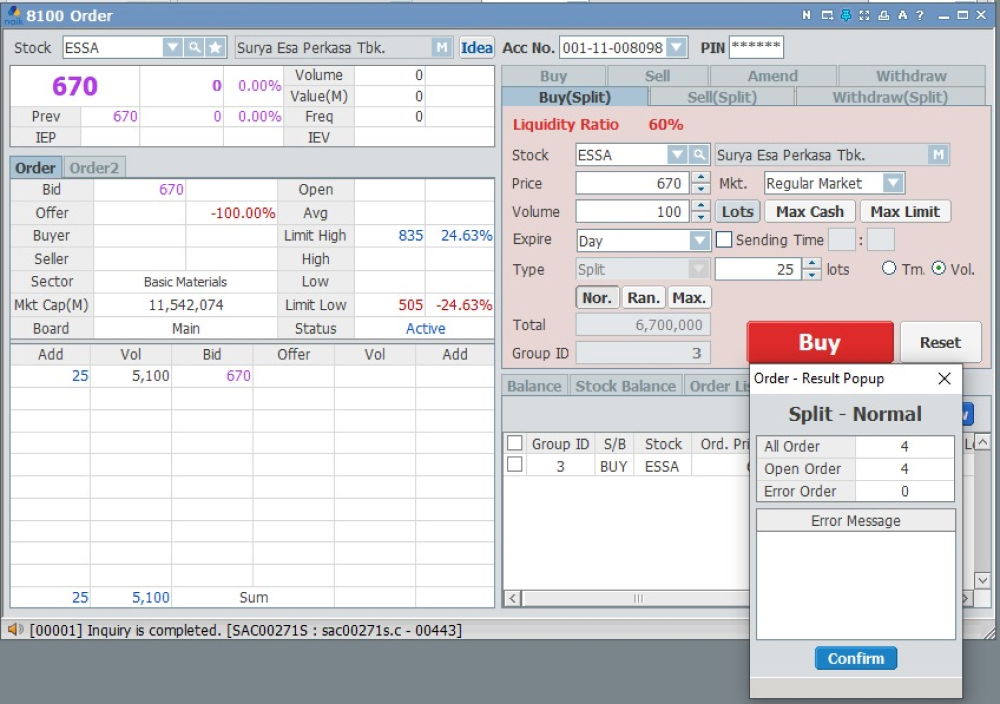
Displays for Buy Split when you want to split your order into several transactions.
- Input Acc No and PIN
- Choose stock name you want to buy
- Input the price and volume to buy. You can also click the lots button to see the volume option
- Select an expiration time for the stock to buy
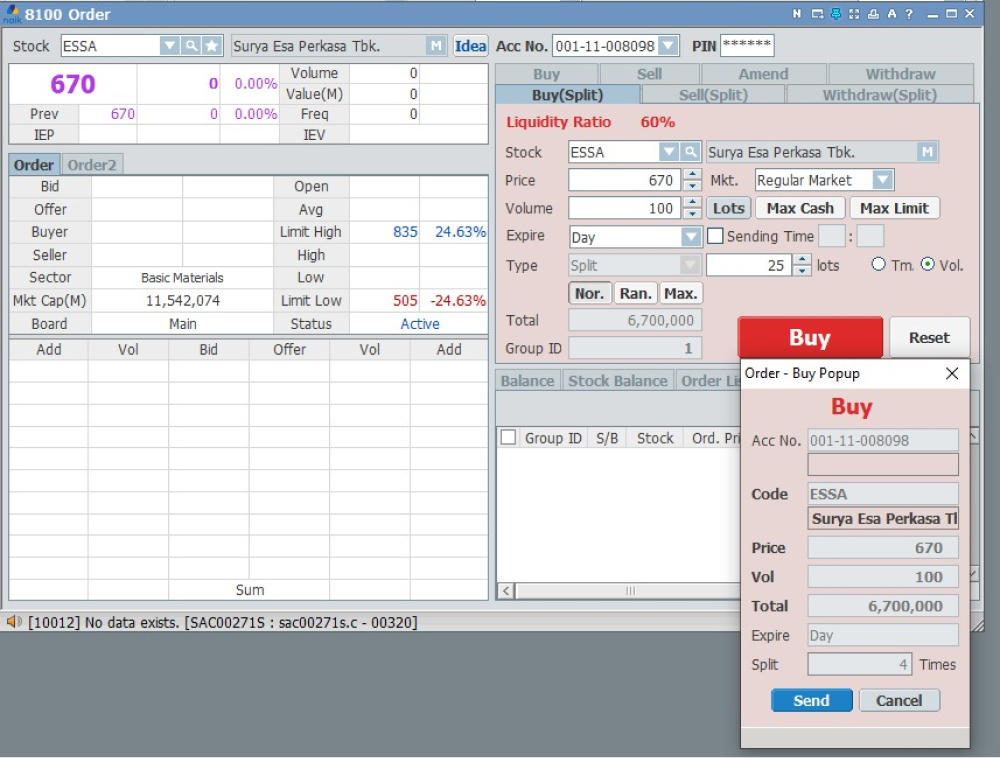
- Select the type, whether you want to divide transactions based on time or volume
- Click Buy to continue the transaction
- After the buy popup appears, re-check the order summary. Then click send to continue
- When Result Popup appears, click confirm to complete the purchase
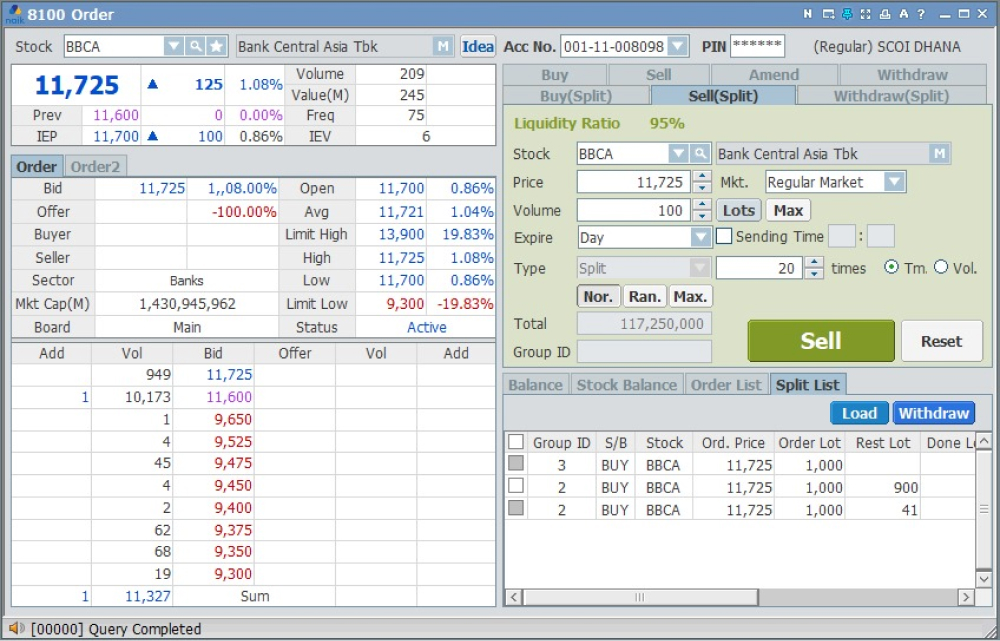
Displays for Sell Split when you want to sell your split order.
- Input Acc No and PIN
- Choose stock name you want to sell
- Input the price and volume to sell
- Select an expiration time for the stock to sell
- Select the type, whether you want to divide transactions based on time or volume
- Click Sell to continue the transaction
- After the sell popup appears, re-check the order summary. Then click send to continue
- When Result Popup appears, click confirm to complete the sale
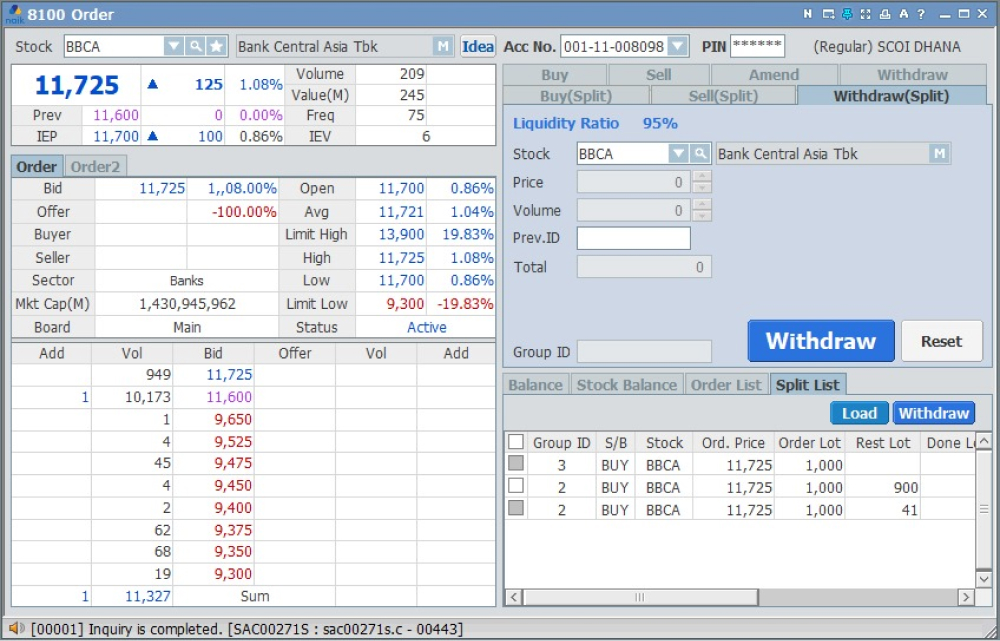
Displays for Withdraw Split when you want to withdraw your split order.
- Input Acc No and PIN
- Choose stock name you want to withdraw
- You can see the Split List table below to see what stock you have and can withdraw
- Input the Prev.ID with Group ID of your stock that you want to withdraw
- Click Withdraw to continue the transaction
- After the withdraw popup appears, re-check the order summary. Then click send to continue
- When Result Popup appears, click confirm to complete the withdraw
8250
[8250] GTC/GTD Order
Good for Day (GTD) is a transaction that will be withdrawn automatically if the stock exchange closes but the order has not yet been matched. Good Till Canceled (GTC) is a transaction that will remain active until you cancel it manually or until the transaction matches.
- New GTC/GTD orders(Buy, Sell) are processed in real-time during market hours.
- The GTC/GTD order should be conduct on (1) market hour or (2) between after market hour and before closed process. Because if the order input after the closing process, the GTC/GTD order is processed the day after tomorrow.
- GTC/GTD amend and withdraw orders are processed during the closing operation after the market hours.
Important information:
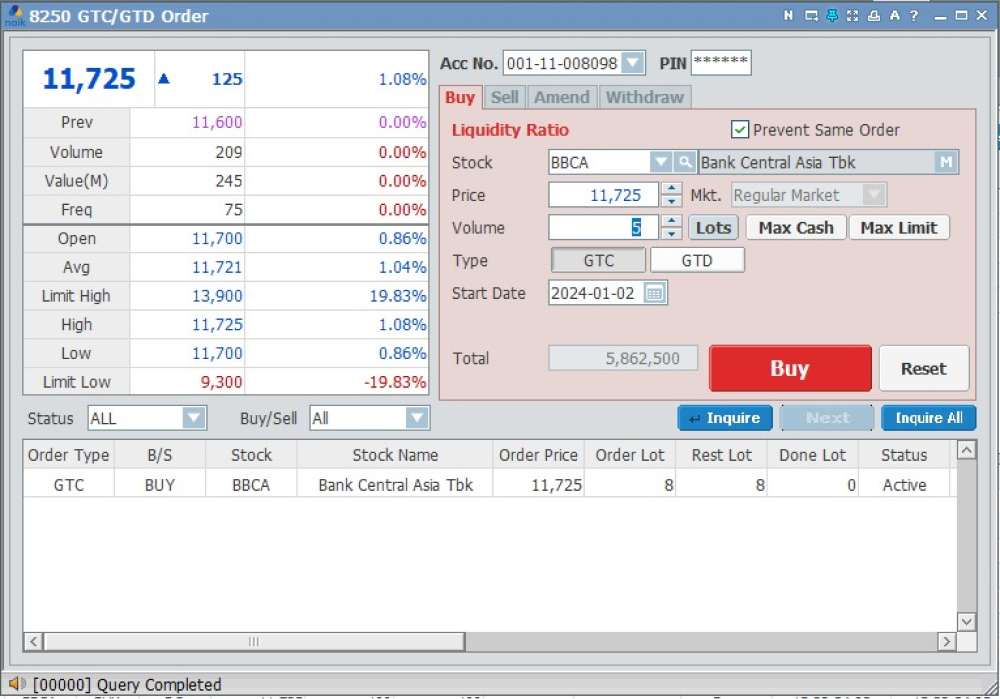
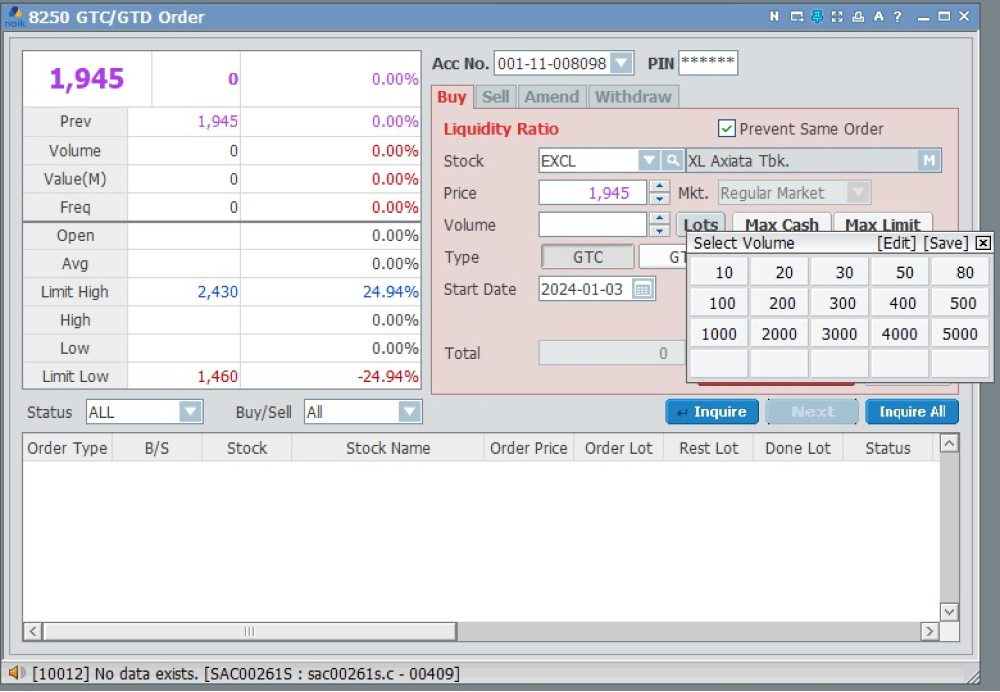
- Input Acc No and PIN
- Choose stock name you want to buy
- Input the price to buy
- Input volume to buy or you can choose the volume option by clicking the lots button
- Select the type, for the GTC Buy you need to activate the GTC button
- Input the start date you want to make transactions
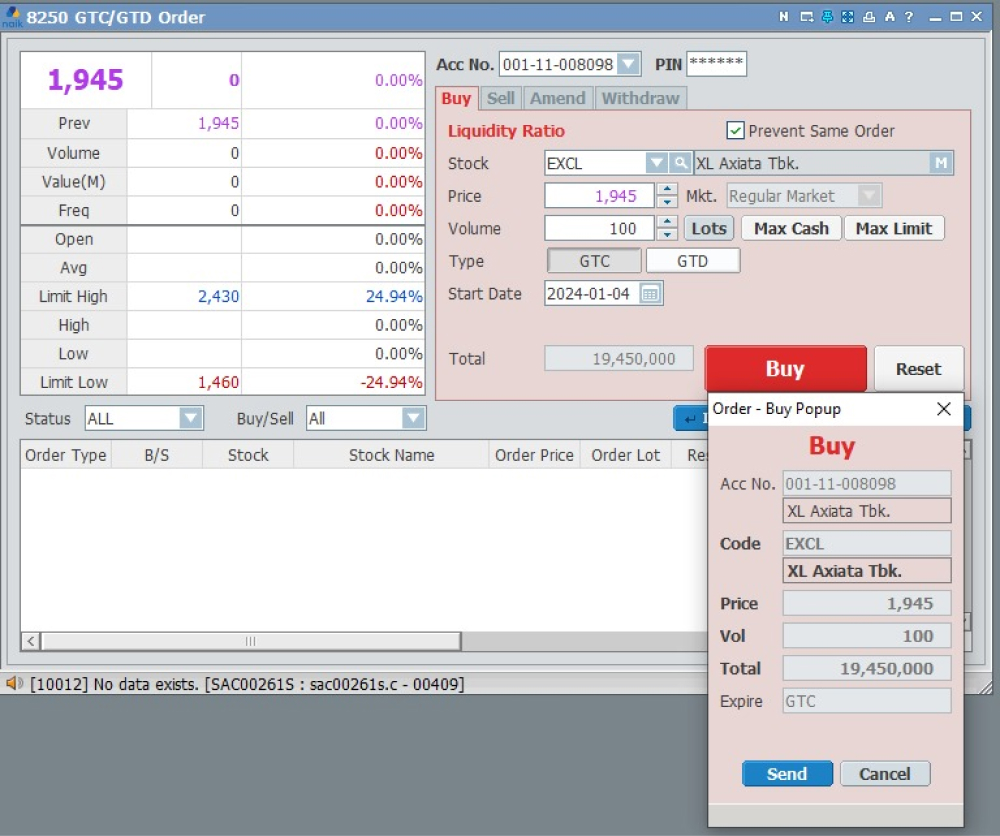
- Click Buy to continue the transaction
- After the Buy Popup appears, re-check the order summary. Then click send to continue
- When Result Popup appears, click confirm to complete the purchase
- Input Acc No and PIN
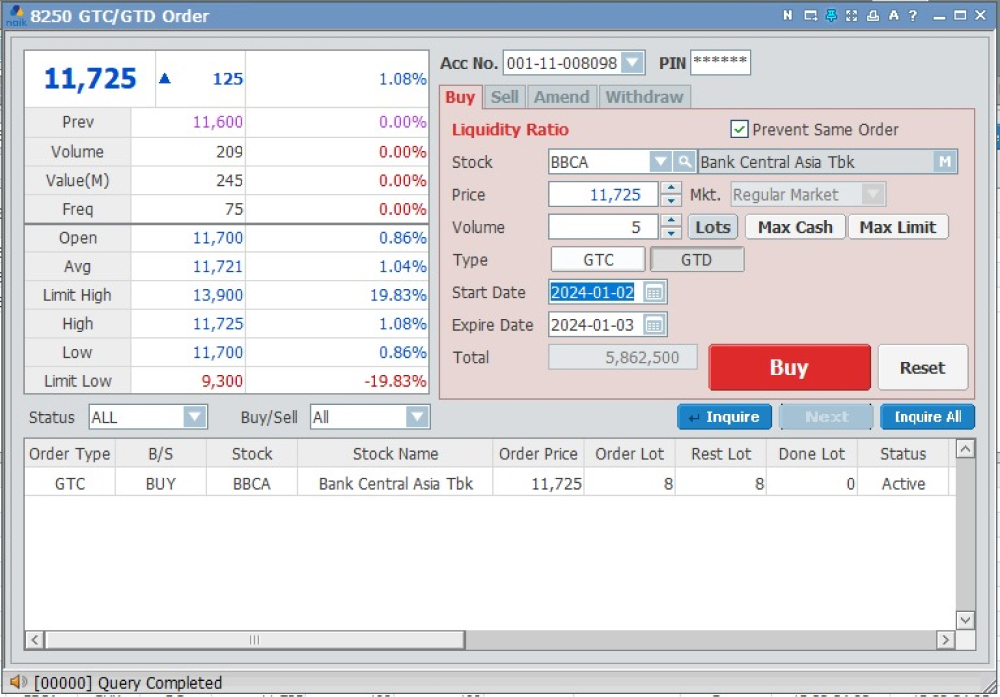
- Choose stock name you want to buy
- Input the price to buy
- Input volume to buy or you can choose the volume option by clicking the lots button
- Select the type, for the GTD Buy you need to activate the GTD button
- Input the start and end dates your transaction will be active
- Click Buy to continue the transaction
- After the Buy Popup appears, re-check the order summary. Then click send to continue
- When Result Popup appears, click confirm to complete the purchase
- Input Acc No and PIN
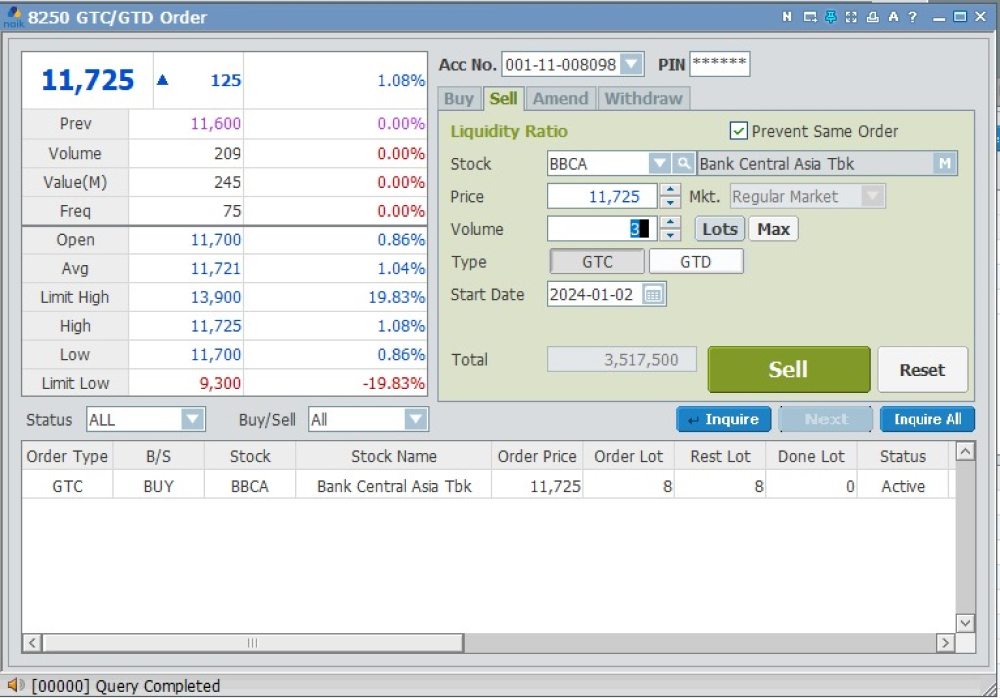
- Choose stock name you want to sell
- Input the price to sell
- Input volume to sell or you can choose the volume option by clicking the lots button
- Select the type, for the GTC sell you need to activate the GTC button
- Input the start date you want to make transactions
- Click Sell to continue the transaction
- After the Sell Popup appears, re-check the order summary. Then click send to continue
- When Result Popup appears, click confirm to complete the sale
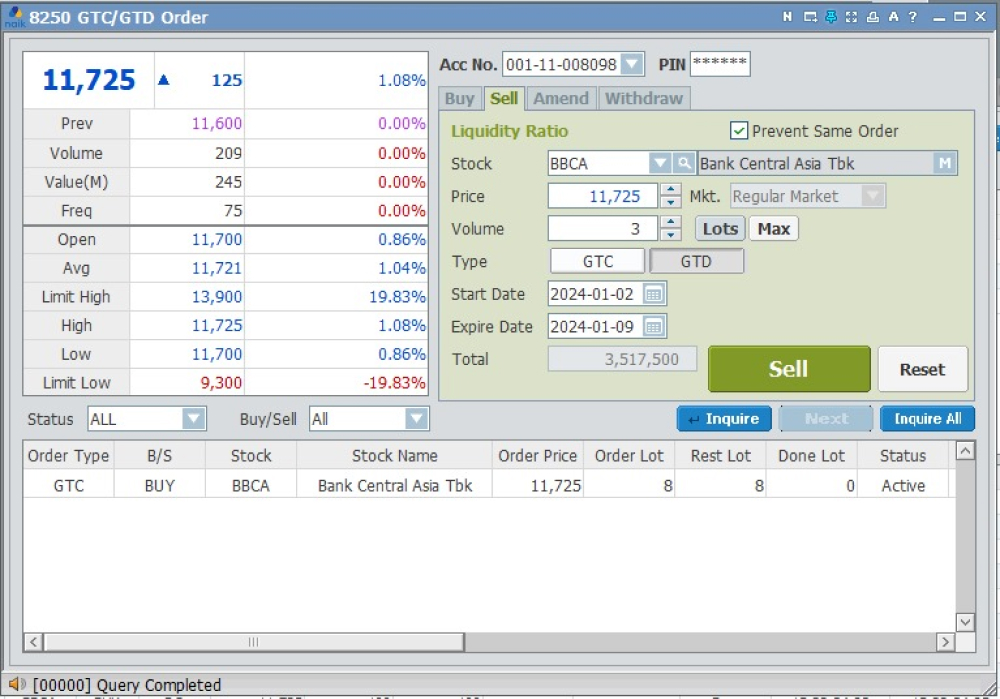
- Input Acc No and PIN
- Choose stock name you want to sell
- Input the price to sell
- Input volume to sell or you can choose the volume option by clicking the lots button
- Select the type, for the GTD sell you need to activate the GTD button
- Input the start and end dates your transaction will be active
- Click Sell to continue the transaction
- After the Sell Popup appears, re-check the order summary. Then click send to continue
- When Result Popup appears, click confirm to complete the sale
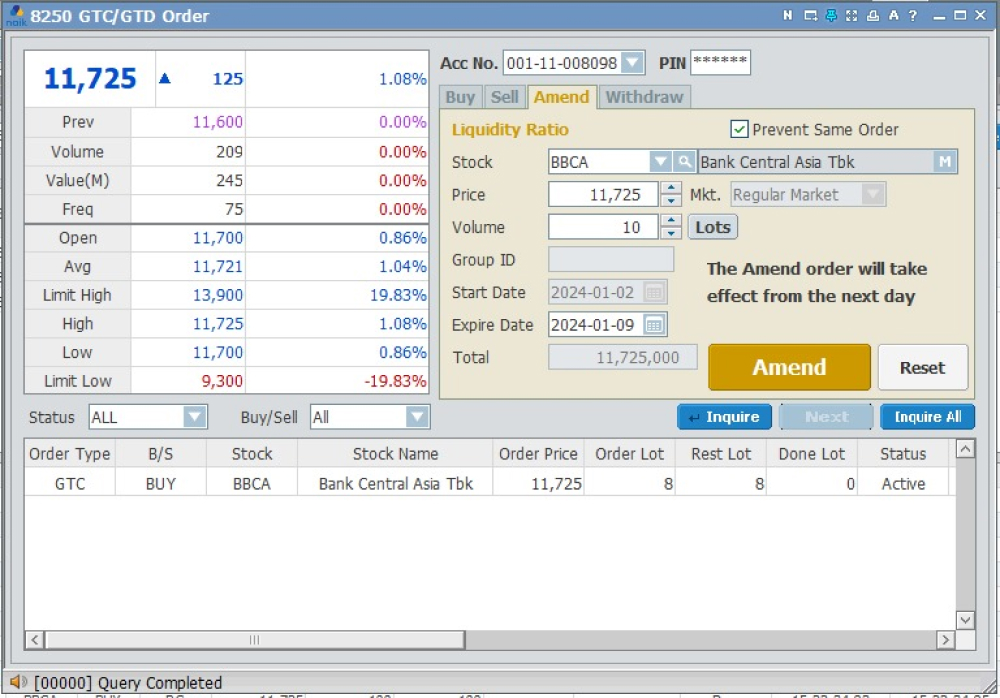
- Input Acc No and PIN
- Choose stock name you want to amend
- Input the price to amend if you want to change the price info
- Input the stock volume to be amended or you can choose the volume option by clicking the lots button
- Input the expire date if you want to change the expire date info
- Click Amend to continue the transaction
- After the Amend Popup appears, re-check the order summary. Then click send to continue
- When Result Popup appears, click confirm to complete the amend
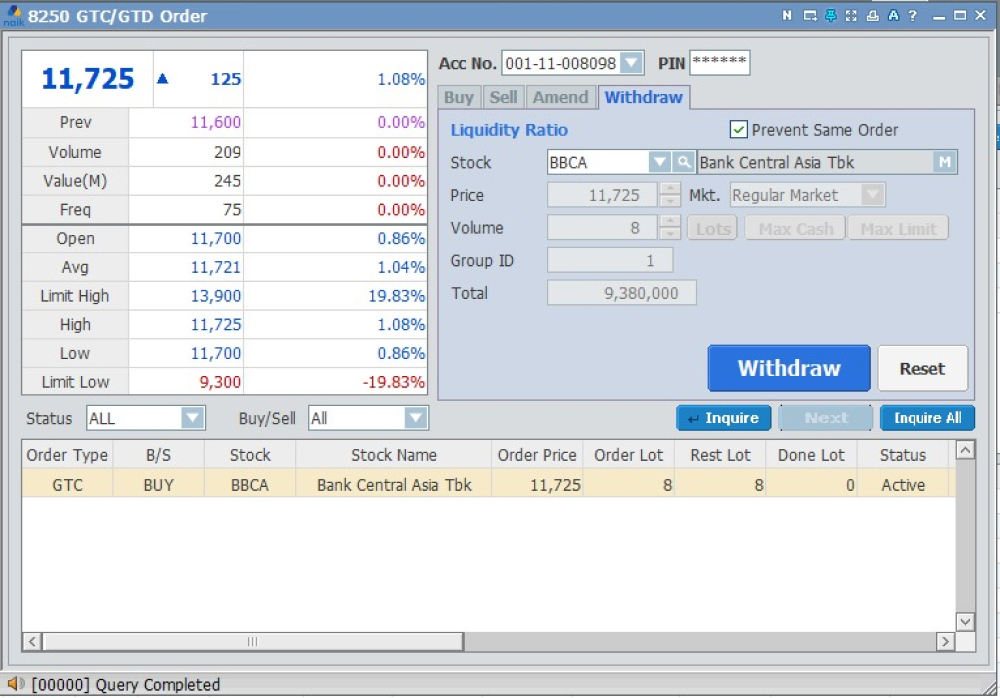
- Input Acc No and PIN
- Choose stock name you want to withdraw
- Click Withdraw to continue the transaction
- After the Withdraw Popup appears, re-check the order summary. Then click send to continue
- When Result Popup appears, click confirm to complete the amend
8111
[8111] GTC/GTD Inquiry
This will display a list of GTC/GTD transactions. And you can see the details of each transaction
GTC/GTD Withdraw

- Input Acc No and PIN
- Select the transaction date range you want to view
- Click Inqure All to see the result
- The result will show on the top table
- If you want to see the transaction details, you can click on the transaction you want to see in the top table. Your results will be displayed in the table below
- You can also filter by status

8112
[8112] Split Order Inquiry
This will display a list of Split order transactions. And you can see the details of each transaction
GTC/GTD Withdraw

- 1. Input Acc No and PIN
- 2. Click Inqure All to see the result
- 3. Filter the transaction you want to see (all, buy, or sell)
- 4. The result will show on the top table
- 5. If you want to see the transaction details, you can click on the transaction you want to see in the top table. Your results will be displayed in the table below




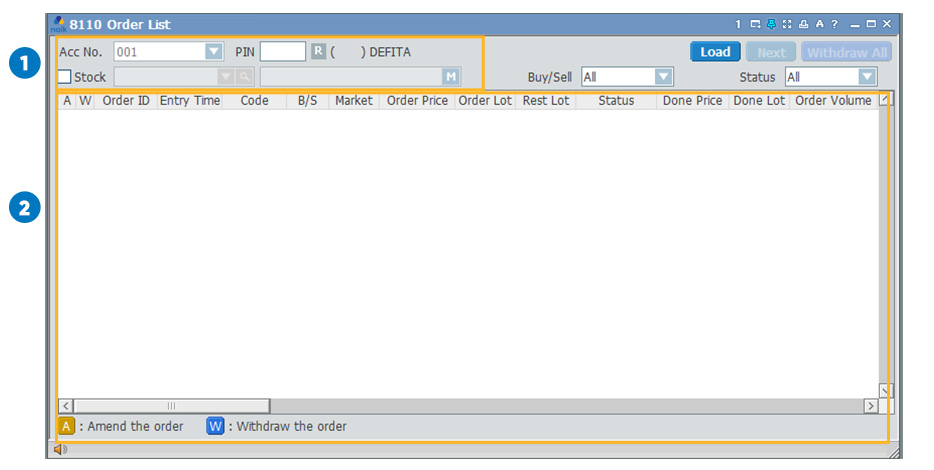
 button to make an amend, and the
  button to withdraw your transaction.









 button to refresh / reload
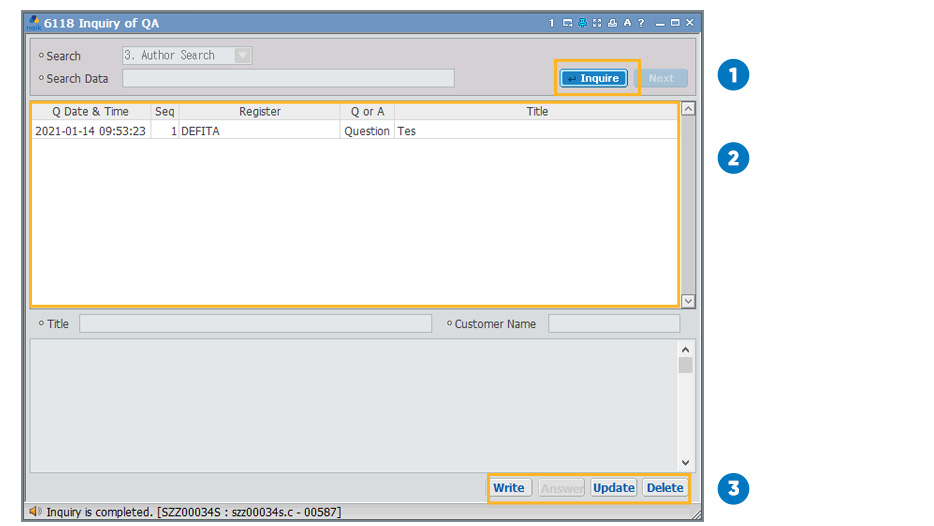
  button to compose a new message.
  button to change the message content that you have created. And a
  button to delete messages that you have sent.