Guideline For Beginner
Do Your Stock Order
STOCK ORDER
[8100] Order
If you want to make an order, just go to Order > [8100] Order or just simply search code 8100.
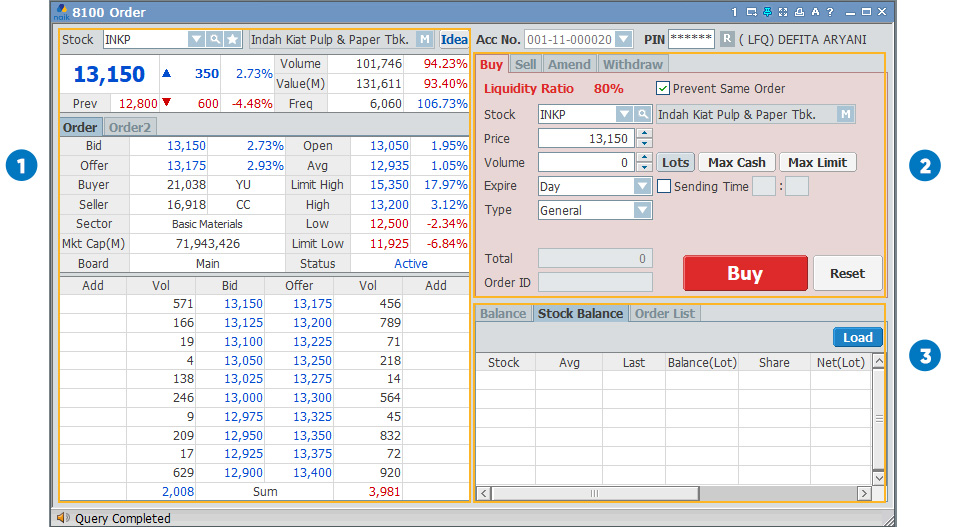
Latest share price in detail such as bid, offer, volume, value, frequency, average price, limit high/low.
Buy / sell / amend / withdraw orders.
- In Buy tab, you can easily input price you want to buy and amount of shares.

- In Sell tab, you can easily input price you want to sell and amount of shares that you already have.

- In Amend tab, you can reduce or add purchases or sales after the order is confirmed.

- In Withdraw tab, the order you make can be canceled.

Displays information such as balance, stock balance, and order list
ORDER LIST
[8110] Order List
Order list can be found on Order > [8110] Order List, or you can search code 8110. This feature displays the trading transactions you made on one day, along with other details.
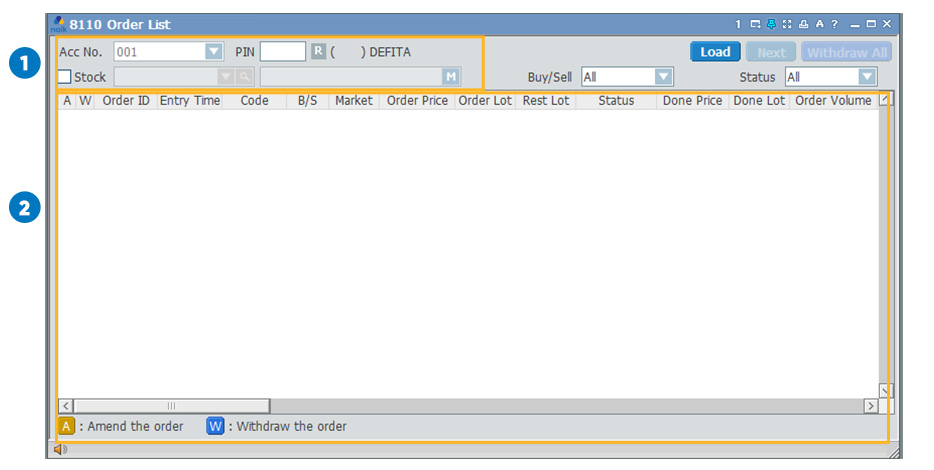
Enter your PIN, along with select stock code if you wish to view certain stock transactions.
List your trade transaction history. Select the  button to make an amend, and the
  button to withdraw your transaction.
button to make an amend, and the button to withdraw your transaction.Maintain Your Portfolio
PORTFOLIO
[6342] Portfolio
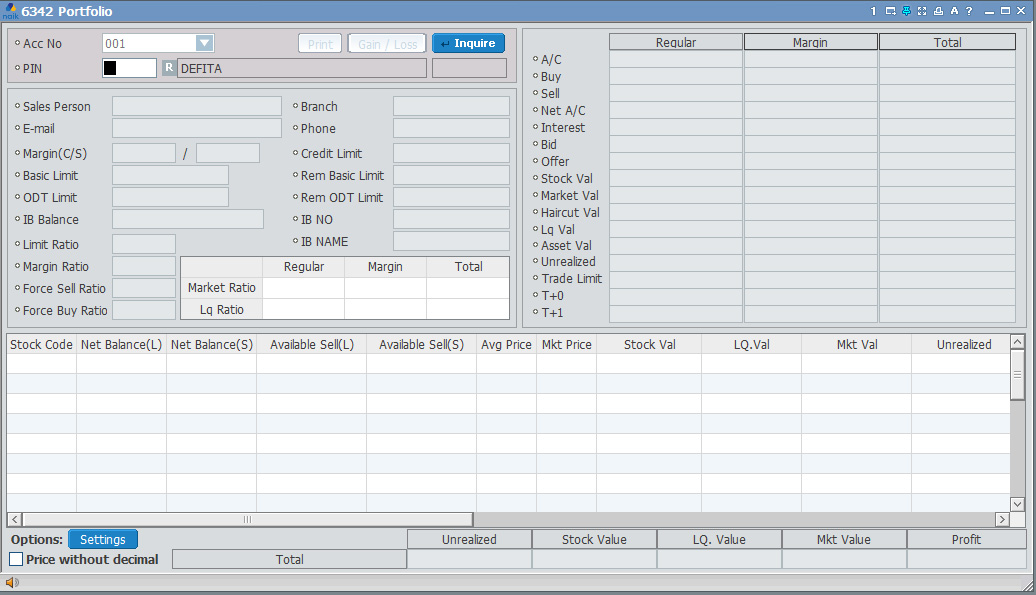
To access your portfolio you can go through Account > [6342] Portfolio, or you can search code 6342.
In this feature you can find out the amount of funds available, the shares you currently have, limit information, as well as some information about your account.
In this feature you can find out the amount of funds available, the shares you currently have, limit information, as well as some information about your account.
Customize Your Stock Watchlist
WATCHLIST
[1601] Watchlist
Watchlist can be found on Quote > [1601] Watch List, or you can search code 1601. If you want to keep an eye on certain stocks, this feature is for you.
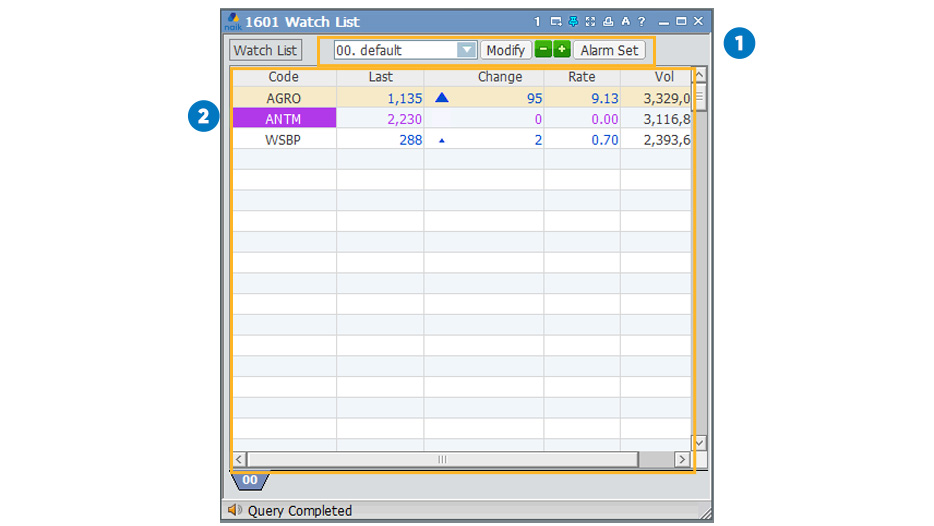
Here are the functions of the buttons:
 : Group name from your watchlist
 : Organize your watchlist
 : Reduce or add screens (if you have more than one watchlist group)
 : To bring up the Alarm setting
These columns provide brief details about your selected stocks.
SET WATCHLIST
[1605] Set Watchlist
Watchlist setting can be found on Quote > [1605] Set Watch List, or you can search code 1601.
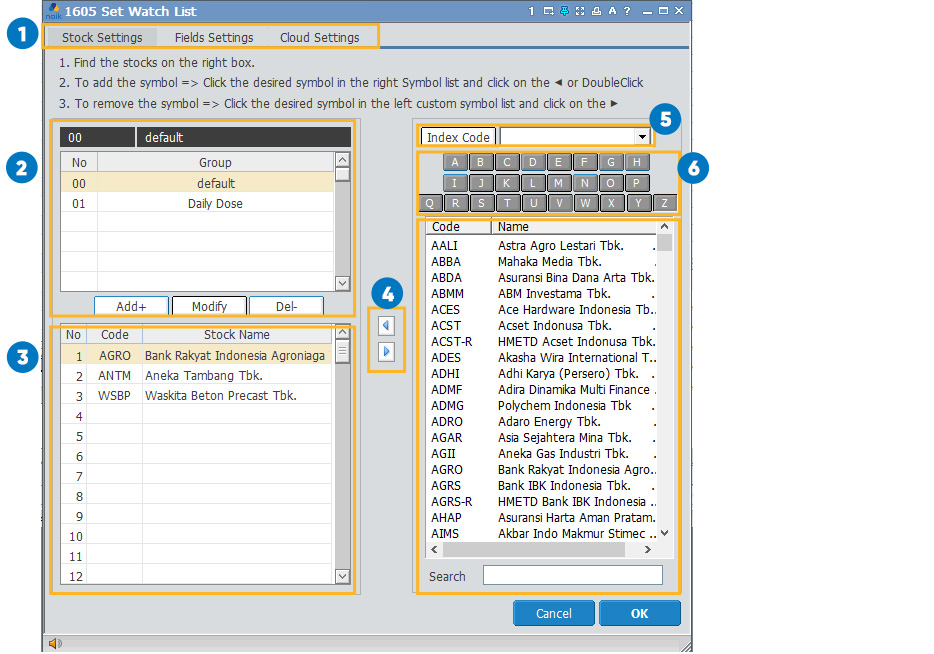
Stock Settings to set your preferred stock and watchlist group. Field Settings to set the parameters you want to monitor. And Cloud Settings to manage your watchlist storage.
Contains the watchlist groups that you have saved. Here are the functions of the buttons:
 : Add a watchlist group
 : Rename your watchlist group
 : Delete your watchlist group
The stocks you have selected to be included in your watchlist group.
Here are the functions of the buttons:
 : Add shares to the group
 : Remove shares from the group
Search for stock codes by sector or index.
Sort stock codes by first letter.
List of stock codes. You can also search for stock codes in the search field.
Keep Track of Stock Price
STOCK PRICE
[1101] Stock Price
To track current price you can go to stock price. You can go through Quote > [1101] Stock Price, or you can search code 1101. This feature makes it easy for you to see the complete details of a stock.
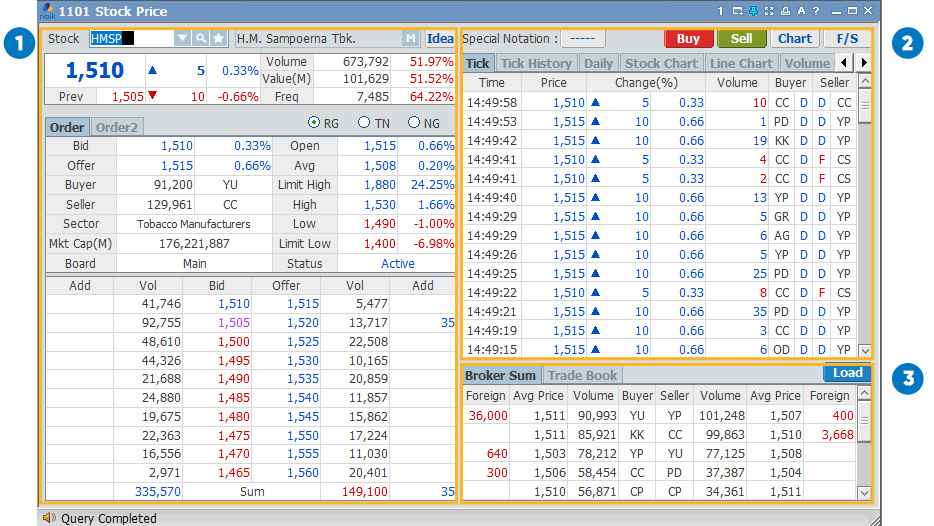
In this section you can find out the details of the price of a share in detail and the latest. The information you can get is in the form of Bid / Offer prices, trading volume, trading frequency, and others.
If you select the menu tab Order2, it will display a different version of Bid / Offer. 10 share prices will be displayed with the transaction volume and the percentage increase / decrease.
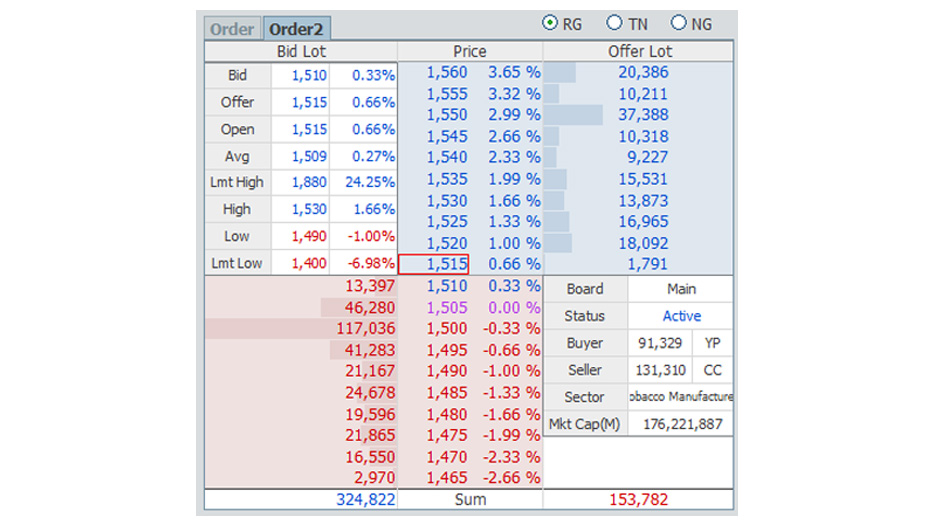
If you select the menu tab Order2, it will display a different version of Bid / Offer. 10 share prices will be displayed with the transaction volume and the percentage increase / decrease.
You can check detailed information on stocks of your own choice such as ticks, history ticks, daily, stock charts, line charts, volume charts, and other menus that you can choose by sliding the menu.
There are also Special Notation, Buy, Sell, Chart, and F / S buttons. Special notation contains symbols for companies that are not in good condition. The Buy button is when you want to buy the stock, while the Sell button is when you want to sell the stock. The Chart button displays a chart of stock movements according to the time range you choose. And the F / S button is the company's financial statement.
There are also Special Notation, Buy, Sell, Chart, and F / S buttons. Special notation contains symbols for companies that are not in good condition. The Buy button is when you want to buy the stock, while the Sell button is when you want to sell the stock. The Chart button displays a chart of stock movements according to the time range you choose. And the F / S button is the company's financial statement.
In this section you can find out the details of Broker Sum and Trade Book.
Transfer Your Fund
FUND TRANSFER
[6320] Fund Transfer
Transfer your fund to your RDN to do transaction. You can go to Account > [6320] Fund Transfer, or you can search code 6320. This screen functions to withdraw your funds (withdraw) from RDN to your personal account.
FUND TRANSFER
FUND TRANSFER
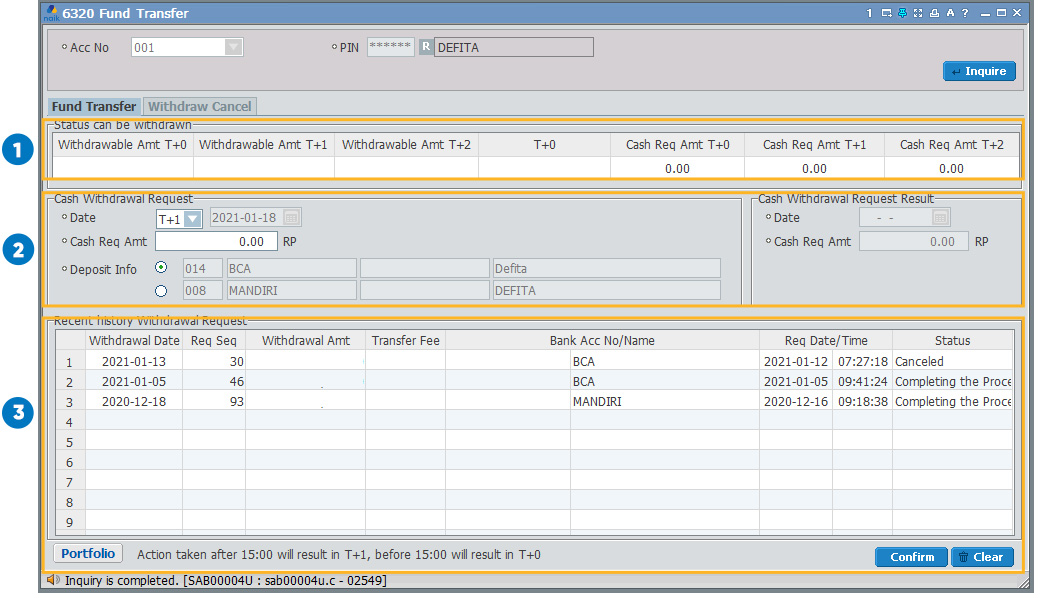
The amount of your balance that can be withdrawn at T + 0, T + 1, and T + 2
Request for withdrawal of funds by entering the date, your personal account, and the amount of funds
List of withdrawal history that you have done / canceled
WITHDRAW CANCEL
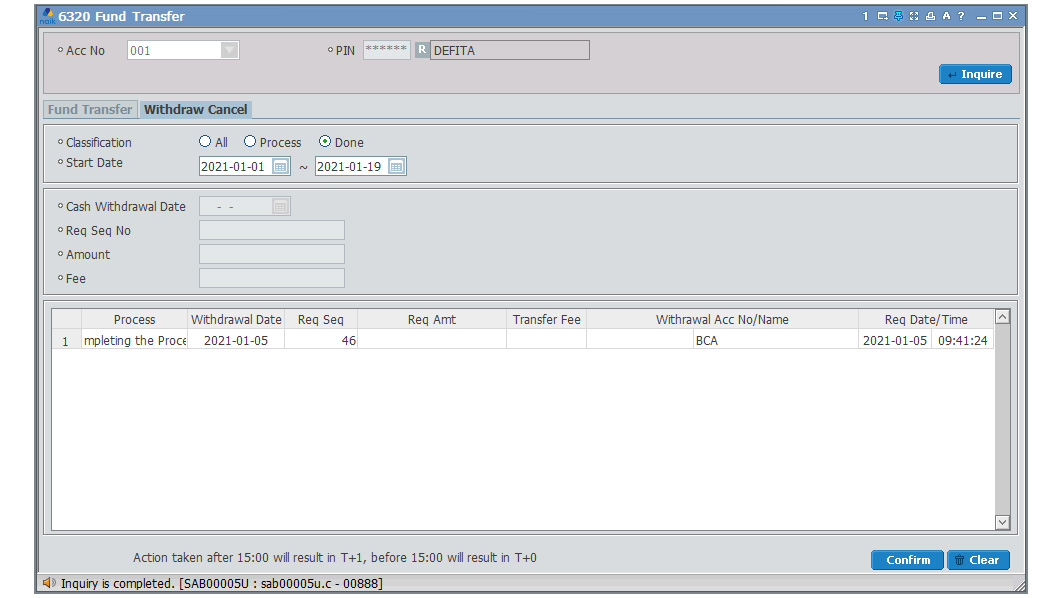
In Withdraw Cancel, you can view the status of withdrawal of funds, and cancel withdrawals of funds.
Track Your Gain Loss
GAIN/LOSS
[6400] Gain/Loss
You can go to Account > [6400] Gain/Loss, or you can search code 6400. Displays the amount of profit / loss from transactions that you have done according to a certain time period.
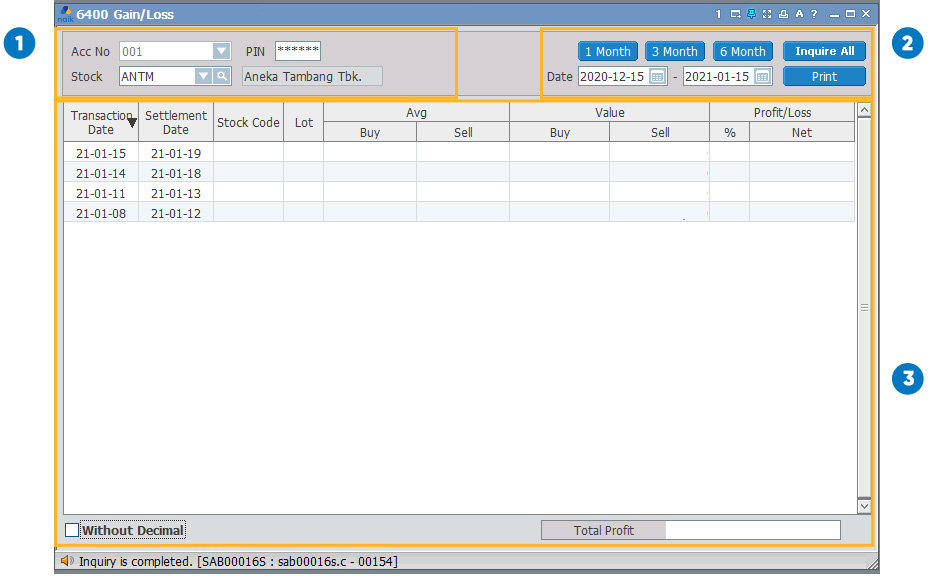
Enter PIN, Acc No, and share code (leave blank if you want to see profit / loss for all shares)
Select the time period you want
Your transaction details